Take Data
You have reached the ultimate purpose of this run: to take phonon and/or charge data! To recap, you will have had to do the following first:
- Unordered List ItemBake the detector.
- Perform charge breakdown measurements.
- Create phonon .xml files specific to each dib/ DCRC board.
- Take IbIs measurements (if taking phonon data).
Your next step is to create DAQ files. These files contain the information specific to the detector in order to take data properly. For every bias you wish to take data at, you will need a DAQ file. After you create your DAQ files, you will need to create a trigger setting file. This determines what the DAQ will trigger on when an event occurs.
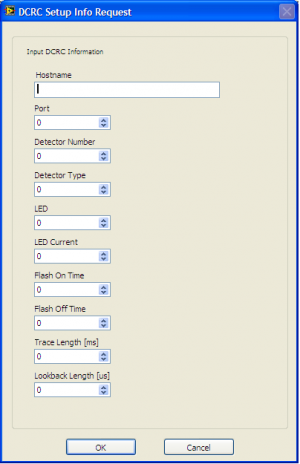
| Figure 1: Pop-Up window from the MultiDAQ vi to set up DAQ files |
|---|
 |
- Open the DCRCv3MultiDAQ.vi in Labview/DCRCv3/20110303 2 and run it.
- To create new DAQ files, press “Change DCRC Setup”.
- A window will pop up to request specifications for each DCRC board, as seen in Figure J.3. Whichever dib you wish to designate as detector 1, fill in its information into this window, DO NOT HIT ENTER UNTIL YOU ARE DONE. Typically you will use the following values:
- Hostname: IP address of current DCRC, for example 131.225.52.116 for DCRC31
- Port: 5001 or any available port
- Detector Number: 1 for DIB1, 2 for DIB2, 3 for DIB3
- Detector Type: 4
- LED: 0 for LED 1 only, 1 for LED 2 only, 2 for both
- LED Current: -0.6
- Flash on Time: 100
- Flash off Time: 5000
- Trace Length: 0.4096 for charge data 3.2768 for phonon data
- Lookback Length: 100 for charge data, 400 for phonon data
- When you are satisfied with the information you have entered, press “OK”. Once you do this, you will be prompted to upload a phonon .xml file for this board (which you created during the SQUID tuning process).
- Once you upload the phonon .xml file, you will be asked whether you want to add another DCRC board. If you have another DCRC board to add in, say “Yes”. A new blank DCRC Setup Info Request window will appear. If you don’t have anymore to add then continue to the next step.
- In the MultiDAQ vi window, check to make sure the values entered for phonon and charge settings are what you expected (compare with what you recorded in the run diary). This first file should have 0 V charge bias. Save this file and make sure that you write in the title “daq” and the number of boards used (i.e. “3dcrc”), or the order of boards (i.e. “D31_D33_D50”) and what charge bias is in the file (i.e. “0V”). This file is your skeleton file, so to speak. You can create multiple DAQ files with different charge biases simply by modifying the charge bias in the MultiDAQ vi (again, reference the values under the the charge bias calibration section) and then re-saving the DCRC setup.
- Now you will create your trigger settings file. Click the Trigger Configuration tab on the MultiDAQ vi. To create a new trigger configuration file, click “Change Global Trigger Definition”.
- A window will pop up that will allow you to select which channels you would like to read out data for the channels you wish to trigger on. For every distinct trigger definition, you must specify a coincidence time (currently, we use 100 us). An example of a distinct trigger definition is to demand that if an event triggers only satisfies Q inner’s trigger threshold, then only read out Q inner and Phonon Channel B information. Another example would be to select AND or OR triggers between Q inner and Q outer charge channels and read out as many properly working charge and phonon channels as possible. After defining a distinct trigger definition, press “Accept Global Trigger Definition”. Then you can create a new distinct trigger definition.
- Once you are done defining your triggers, quit this window properly, and then save the global trigger definition. Make sure to make this trigger file name somewhat distinct, because you will probably create a few trigger files to find the optimal data taking setting.
- With regards to the triggers and trigger threshold, you still need to set the threshold. Using the readout vi and selecting the all-channel view, modify the ADC bins in the left column, which represent the trigger threshold, and push the threshold as low as possible while maintaing a clear signal. You don’t want most of your triggers to happen on noise fluctuations, but you don’t want to set the threshold too high such that you cut out good events.
- In the Metadata field, enter the following key and value pairs in order, separated by commas, on one line as shown:
- type IZIP, bias np4V, source bg, duration 45, randoms 1000, eventsPerFile 2000, comment background after strong activation
- With your DAQ and trigger files created and your trigger thresholds established, you are ready to take data. Make sure the files you created have been uploaded to the MultiDAQ vi.
- To take one long continous set - Flash the detector for an hour first. Once it has cooled back to base temperature, press the green “Start” button. You’re taking data now!
- To take multiple timed sets - Flash the detector for an hour first. Let it cool back to base temperature. Under the auto run section, decide how long you want each set to be. Then decide how long you want to flash between each data set. 6 seconds of flashing between data sets is sufficient. Choose 20 minutes of cooldown. Lastly, press the green “Start” button. You’re taking data now!