−Table of Contents
Windows - Remote Network Drive Setup
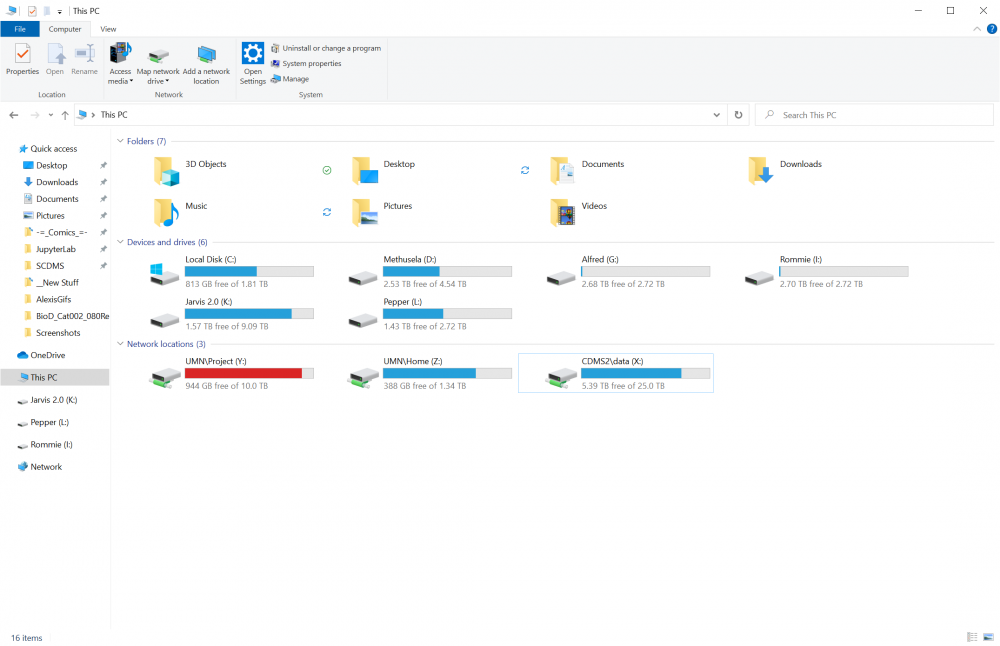
Do you want a familiar GUI way to connect to UMn directories from home on your Windows machine? Then follow this guide! This provides a nice alternative for working with Python since now you can code the remote drives, that you would usually have to SSH into, as a simple local path.
WinSCP is still a great alternative app for accessing drives via SSH but with a bit less functionality.
In order to access or create these network drives you must have your UMn VPN turned on. (Split-tunnel only as of 8/2/21)
To create a drive, click “Map network drive” in the top ribbon.
Choose the drive letter that you want it to appear as on your personal computer. Check the boxes for “reconnect at sign-in” and “Connect using different credentials”.
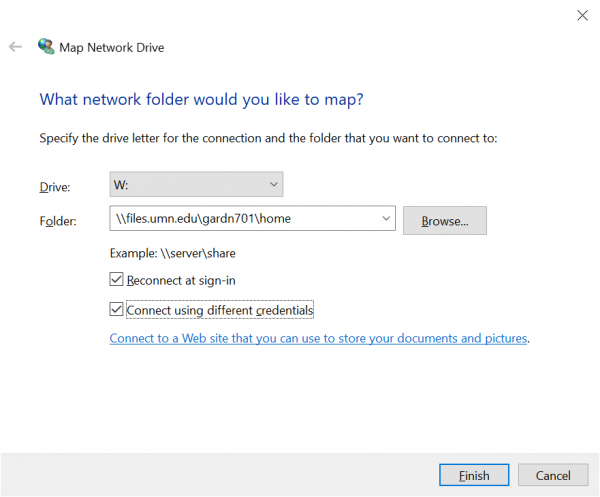
For most connections, you need to enter your account name as “ad.umn.edu\abcde123” when it asks you to sign in using your UMn ID/password. Note that you may have to redundantly type it in 2-3 times for reasons. (There may be slightly different login credentials for different drives, as noted at the end of this document for \data in particular.)
Once it is able to sign in, you will see the drive appear in your list of hard drives.
IF you do not have the VPN connected, these drives will appear with red x's and be inaccessible until you connect
\Home Directories
Path: \\files.umn.edu\abcde123\home
Account Name: ad.umn.edu\abcde123
\data\chocula Directories
Path: \\cse-barents.cse.umn.edu\spa-cdms2
Account Name: AD\abcde123
\project Directories
Path: \\samba.cse.umn.edu\project\
Account Name: ad.umn.edu\abcde123