−Table of Contents
Introduction
The K100 fridge has 3 I/O cables with 50pin DSUB connections that are connected to the revC DCRC boards. In order to upgrade the boards to DCRC RevE, which has 100 pins (supporting 12 phonon channels), we need to reroute the three 50 pins to the 100 pins with a connector that will take care of the appropriate rerouting scheme. Bruno, at Berkeley, has the re-routing map as well as two such connectors. We decided to lend one connector from them but we can also go through the wiring scheme to make our own connector as well.
PCB designing basics
A PCB is built of many separate layers. The board has a fiberglass base material (substrate) which provides the mechanical structure for the other layers. On each side of the substrate is a layer of copper which is where the conductive trace lines will be. These are sometimes called solder layers because they are typically coated with a thin layer of solder. Yes, there are two separate copper layers which is what allows trace lines to cross each other since they can run on two different planes with the substrate as an insulating layer between (more complex boards will have multiple substrates layered as insulation between additional copper layers). On top of both copper layers is a solder mask. This is the (typically) green colored layer that gives circuit boards their characteristic look. It looks like paint and insulates the copper from the outside world (except for where there are pads which are locations where parts will be soldered on). Finally, on top each solder mask there is a silkscreen layer on which we print labels, component outlines, and other useful indicators.
Ultiboard Project files from Bruno
50pin-100pin_connector.zip doc1.pdf
Connection Map for 100pin to 50 pin
v1vsv2detectoriocables.pdf
Connecting to DCRC RevE board to set IP address
- Use a USB cable (Male Type-A to male Type-B, sometimes called a “USB printer cable”) to connect the DCRC RevE board to the Fridge pc.
- You will see a new device has been added to the list of device notification from windows. note that in my case, the device name is “Silicon Labs CP210x USB to UART Bridge (COM6)”. So, my device is available at COM6 port.
- Open a Putty session with settings, Connection Type: Serial, Serial line: COM6 and Speed: 115200 (for RevE). You should see a new terminal now. (Note: If the screen shows nonsense when typing, change the baud rate. Possible values for RevE: 115200, 921600)
- Check the current IP. Type SET to check the current IP. (PS: If it shows an error like syntax error, Type HE for help and then type SET)
- The above command show this list. Keeping it for future reference.
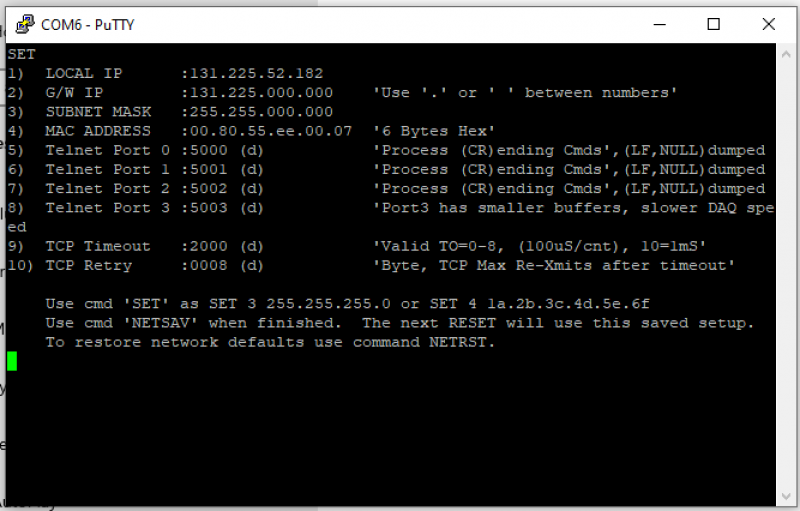
- Settings
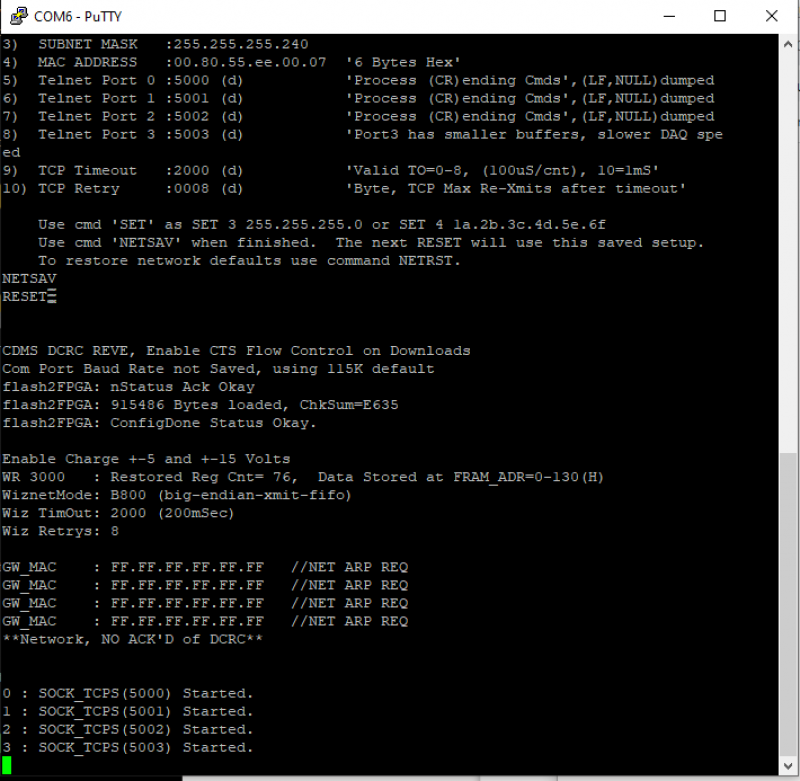
- Found this note on confluence page
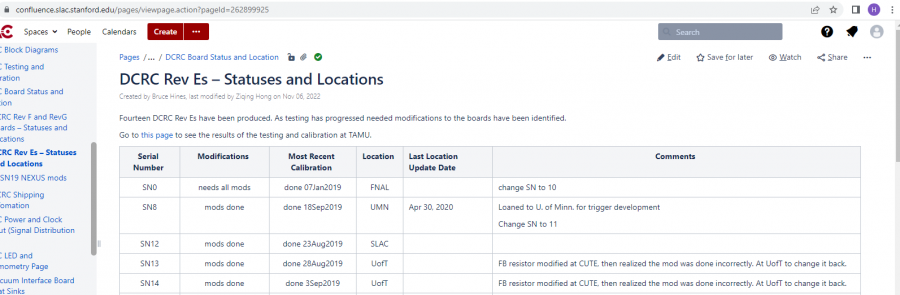
- (https://confluence.slac.stanford.edu/pages/viewpage.action?pageId=262899925) to change the serial number to 11. Assign the correct serial number by typing SN XX where XX will be 34 for SN 34.