Keep your setup up to date. The first code cell in Step 4 checks your environment against the project’s current list and warns you if it is out of date. If you see a WARNING, follow Updating your setup. Do the same after every new release the project lead announces.
Your computer:
PDF for Windows (download or print)
Choose your computer above. This guide has one version for each, and the page remembers your choice.
Windows edition
Your first analysis
What you will do. Download one set of real detector data, open it in a notebook, look at it, and reproduce one number from an existing note. You will need the setup guide for Windows finished first.
Before you start
- Time: about two hours.
- You need: the setup guide finished (your
environment
darkmatter_cli_envexists and works). - Check: open a Miniforge Prompt
(click Start, type
Miniforge Prompt, press Enter), and runconda activate darkmatter_cli_env. The start of the line should show(darkmatter_cli_env). - Folder: you do not need to be in any particular folder yet. Each step below tells you where to go.
Words you will meet
| Word | What it means here |
|---|---|
| Series | One data-taking session, named like 07221203_2025. The
first two digits are the test facility (07 is UMN, the
University of Minnesota); the rest are the date and time the series
started, here 221203 (year, month, day: 3 December 2022)
and 2025 (20:25). A typical series lasts hours; some are
shorter because they are tests. |
| Dump | One file set taken from a series, numbered F0001,
F0002, … |
| Event | One moment when the system decided something might have happened and saved a short recording from every detector. Events are numbered in time order. See Figure 2, and the appendix. |
| Detector | In this data, a “detector” number (0, 1 or 2) means one readout electronics unit, not a separate crystal. All three units are wired to the same physical detector, S104. |
| Channel | One of the four sensor outputs of a readout unit, numbered 0 to 3. Each channel records its own trace. We use detector 0, channel 0 (Figure 2). |
| Trace | The recorded signal for one channel in one event: 4096 numbers, one per sample. |
| Sample | One reading of the readout circuit’s output (usually a voltage or a current). Each sample is 1.6 microseconds long, and is the average of the output over that time. |
| ADC counts | The units of a sample. The analog-to-digital converter (ADC) turns each reading into a whole number (an integer), proportional to the measured voltage or current. In this dump the largest are around 8000, so they need at least 13 bits; the exact width is not stated in this guide. |
| Baseline | The flat level a trace sits at when nothing happens. |
| Pretrigger window | The first samples of a trace, used to measure the baseline. |
| Pulse | A sudden rise above the baseline that then slowly falls back. It is what a particle leaves in a trace. |
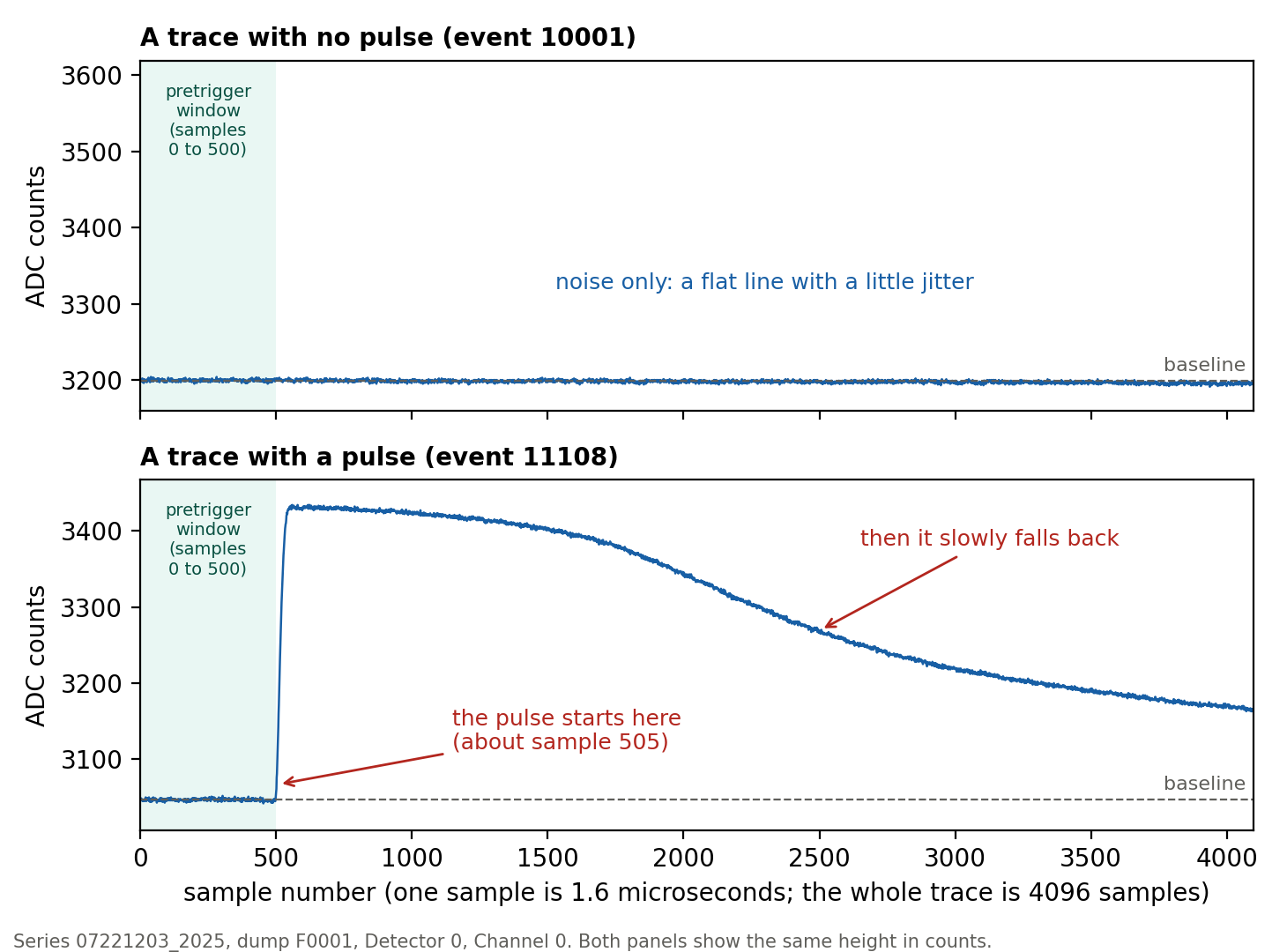
Figure 1. Two traces on the same scale. Top: noise only. Bottom: a pulse.
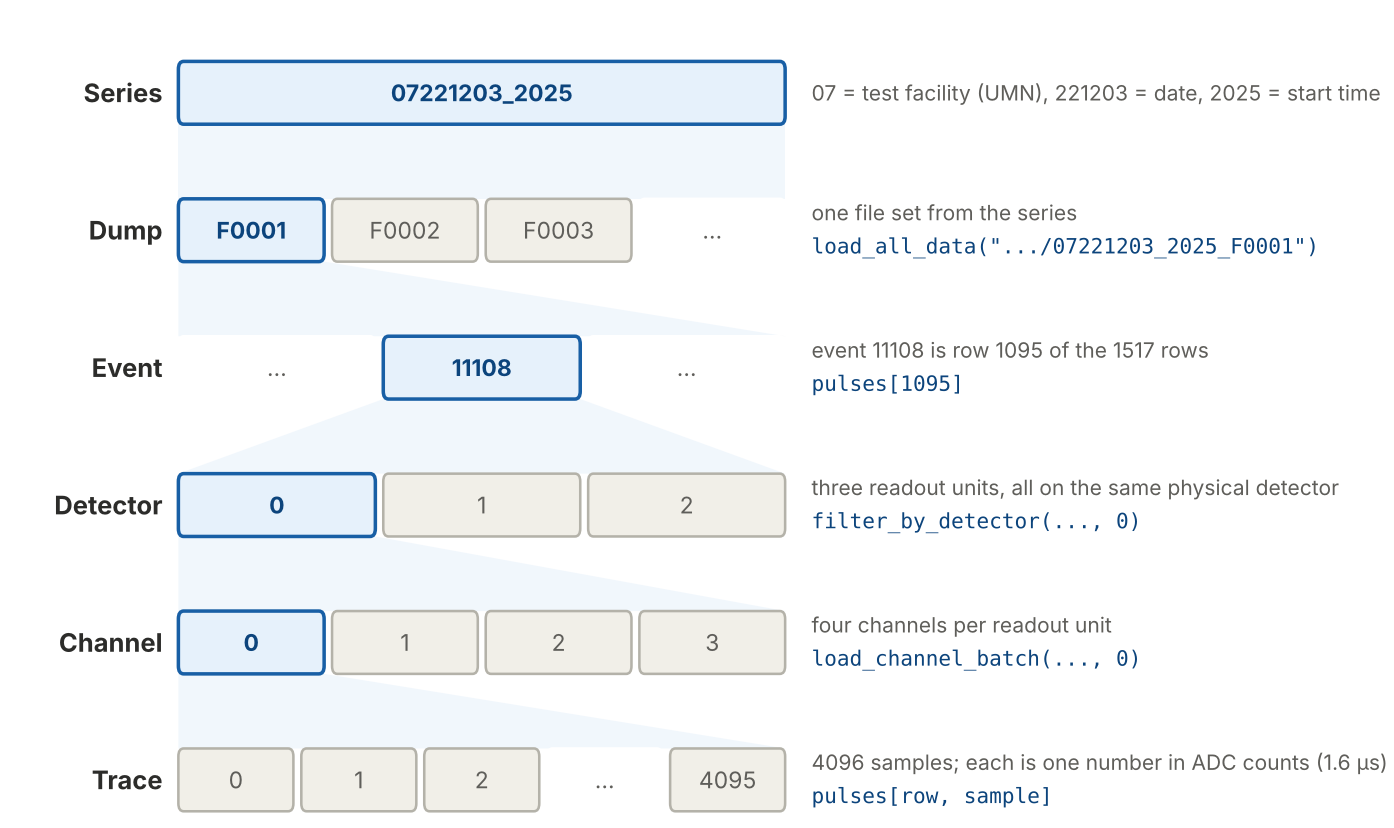
Figure 2. How the data is organised, and which part
this guide follows (blue). A series is split into dumps; a dump holds
events; each event has a trace from every channel of every detector; a
trace is 4096 samples. The code in Step 4 picks detector 0, channel 0
from every event of dump F0001, so each row of the table
pulses is one event, and pulses[row, sample]
is one number.
Step 1. Read two notes first (about 30 minutes)
Open the notes site at villano-lab.github.io/NSDF-Data and read these, in order:
- Note 2, Noise-pulse selection: how we pick quiet traces. It uses the same dump you will download.
- Note 2a, bstd against time: how the baseline noise of those traces changes from event to event, in the same dump.
You do not need to follow every number. Just learn the words in the table above.
Step 2. Download the data
First go to your home folder, so the data lands in the right place. Type this, then press Enter:
cd %USERPROFILE%Now download the data:
nsdf-cli download 07221203_2025_F0001The download puts the data in an idx folder in
the folder you are in. Because you went to your home folder
first, it lands in C:\Users\YourName\idx, inside a folder
named 07221203_2025_F0001. The data is about 34 MB. Wait
until the prompt comes back.
Never download from inside the NSDF-Data folder. Its
idx folder would sit inside the project, where Git can pick
it up. If you have already downloaded there, move the idx
folder to your home folder, and tell your lead.
What these lines do: the first one moves you to your
home folder (the cd line). The second,
nsdf-cli download, fetches the data set from the NSDF
servers over the internet and puts it in a new idx
folder.
Optional: tell nsdf-cli once where downloads
go. Type this one time, and every later download goes to your
idx folder, whichever folder you are in:
nsdf-cli config --output-global %USERPROFILE%\idxType nsdf-cli config to see the setting. It is saved in
a small file in your home folder (.nexus-dm\config.json),
so you do not repeat it. Two more nsdf-cli options you may
see: nsdf-cli download SERIES --all downloads
every dump of a series (the series in this guide has 30
dumps, about 1.9 GB), so do not use --all unless your lead
says to; and nsdf-cli prune removes the downloaded series
from your download folder to free disk space (it shows the folder and
asks before it deletes anything).
Do not move or edit the downloaded files, and do not add them to Git. They are external data, not part of our data analysis code in the NSDF-Data repository.
If the message says the folder already exists, the data may already
be there. To check, type dir %USERPROFILE%\idx:
if the list shows a folder named 07221203_2025_F0001, you
already have it, and an error message means there is no idx
folder yet. Ask the project lead before you delete anything.
Step 3. Open Jupyter in the right folder
Every student works in a folder of their own, inside
data_analysis\R76\student in the project. Use the same name
as in your branch name (student-yourname), without spaces,
in place of yourname. In the terminal, type these
lines:
conda activate darkmatter_cli_env
cd %USERPROFILE%\Research\NSDF-Data\data_analysis\R76\student
mkdir yourname
cd yourname
jupyter lab
What these lines do: conda activate
switches your environment on, cd moves you into the folder
where the students’ notebooks live, mkdir yourname makes
your own folder there (if it says the folder already exists, that is
fine: you made it before), cd yourname moves you into it,
and jupyter lab starts the notebook program. Leave
this terminal window open while you work: closing it stops
Jupyter.
Your web browser opens a Jupyter page. Click File, then New, then Notebook. If it asks which kernel to use, choose darkmatter_cli_env.
A notebook is a list of boxes called cells. Type code in a cell and press Shift + Enter to run it. The result appears under the cell. Press Enter (without Shift) to keep typing in the same cell.
Give your notebook a name: right-click its tab at the top (it says
Untitled.ipynb) and choose Rename
Notebook. In the box, replace Untitled with
first-analysis-yourname (keep .ipynb at the
end) and click Rename.
Step 4. Load the data and count the traces
Copy this into the first cell and press Shift + Enter:
import sys
from pathlib import Path

# Tell Python where the pulse library (the python folder) is.
# This looks upward from the notebook's folder until it finds the project,
# so it works wherever in the project your notebook is.
here = Path.cwd().resolve()
REPO = next((p for p in [here, *here.parents] if (p / "python" / "pulse_io.py").exists()), None)
assert REPO, "Start Jupyter from inside the NSDF-Data folder."
sys.path.insert(0, str(REPO / "python"))

from nsdf_dark_matter.idx import load_all_data
import pulse_io as pio

# Check that your setup is up to date (it only warns; it never stops the notebook).
import check_environment
check_environment.check()

# Open the dump you downloaded.
cdms = load_all_data(str(Path.home() / "idx" / "07221203_2025_F0001"))

# Take every trace from detector 0, channel 0, into one table.
ids, pulses = pio.load_channel_batch(
    cdms, pio.filter_by_detector(cdms.get_detector_ids(), 0), 0)

print(pulses.shape)
The first line says Environment OK, and the last is
(1517, 4096): 1517 traces, each with 4096 samples. If you
get a different number, stop and check the dump name and the folder in
Step 2. If the first line says WARNING, you can keep going
for now, but follow Updating your setup soon.
Want to know what every line did? See the code, line by line (part A).
Step 5. Look at a trace
Click in the empty cell under the one you just ran: Jupyter adds one each time you press Shift + Enter. If there is none, click + in the toolbar to add one. Put this in it and run it:
import matplotlib.pyplot as plt

plt.plot(pulses[0])
plt.xlabel("sample (1.6 microseconds each)")
plt.ylabel("ADC counts")
plt.show()
Now change the 0 to 1 and run again, then
try 2 and 3, one number at a time.
(pulses[1,2,3] does not pick three traces: it is an error,
because the first number counts rows and the others count samples.) Most
traces look like flat noise, with a little jitter. Row 1 is a quiet
trace like the top one in Figure 1. To see a pulse, try
row 1095. Then see the appendix if you
want to know more about what you are looking at.
Step 6. Reproduce a number from Note 2
Note 2 says that for this dump, a strict selection leaves 179 quiet traces. Run this in the next empty cell (add one with + if there is none):
from dataclasses import replace
from pulse_config import DEFAULT_CONFIG
import pulse_quantities as pq
import pulse_cuts as pc
import numpy as np

c500 = replace(DEFAULT_CONFIG, pretrigger_samples=500)
quiet = pc.excursion_band(pulses, c500) & (np.log10(pq.bstd(pulses)) < 0.5)
print(quiet.sum())
The output is 179. If you see a different number, that is worth knowing. Write down the number you got and the steps you took, and tell the project lead. Do not change the project’s code to make the number match.
Want to know what every line did? See the code, line by line (part B).
Step 7. Write down what you did
In Jupyter, click + to add a cell and change its type from Code to Markdown in the toolbar. In that cell, write a few sentences in plain English: what you loaded, what you plotted, and what number you got. Then press Shift + Enter.
Save with Command + S (macOS) or Ctrl + S (Windows and Linux).
Once your branch exists (setup guide, Step 8), save your notebook to
Git. The first terminal is busy: it is still running Jupyter, so leave
it open. Open a Miniforge Prompt (click
Start, type Miniforge Prompt, press
Enter) for the Git commands. A new terminal starts in
your home folder, so the first line below moves you into the project
folder from the setup guide:
cd %USERPROFILE%\Research\NSDF-Data
git branch --show-current
git status
git add data_analysis/R76/student/yourname/first-analysis-yourname.ipynb
git commit -m "First analysis: load dump 1 and count the quiet traces"
git push -u origin student-yourname
What these lines do: the first one moves you into
the project. git branch --show-current prints the name of
the branch you are on, and git status lists what has
changed since your last save. Make this a habit: every time you
open a terminal in a project, look at the branch and the status before
you do anything else. Then git add picks the file
you want to save, git commit saves a snapshot of it with
your short message, and git push uploads that snapshot to
GitHub, to your own branch.
git branch --show-current prints
student-yourname (your own branch), and
git status starts with
On branch student-yourname and lists your notebook under
Untracked files (a new file) or Changes not
staged for commit (a file you changed). If the branch is
develop or master, stop and ask the project
lead: do not commit there.
You may see a warning about LF and CRLF. On Windows,
git add can print a line like this one:
warning: in the working copy of 'data_analysis/R76/student/yourname/
first-analysis-yourname.ipynb', LF will be replaced by CRLF the next time Git touches it
This is harmless, and your file was still added, so carry on with
git commit. Every line of a text file ends with an
invisible marker. Windows uses two characters for it (CRLF), macOS and
Linux use one (LF). Git for Windows keeps LF in the repository and gives
you CRLF in your own copy, so it is telling you that it will convert
this file the next time it writes it.
Commit only your notebook. Check the list from
git status before committing. If you see .bin
files or anything from the idx folder, do not add them.
You are done when
Common problems
| What you see | What to do |
|---|---|
ModuleNotFoundError: No module named 'nsdf_dark_matter' |
You are not in the environment. Run conda activate darkmatter_cli_env, then restart the
notebook kernel (Kernel, then Restart
Kernel). |
ModuleNotFoundError: No module named 'pulse_io' |
Jupyter was started from the wrong folder. Close it and start it
again from your own folder in data_analysis\R76\student
(Step 3). |
fatal: pathspec '...' did not match any files when you
run git add |
You are not in the project folder, or the file name is not the one
you saved. Open a Miniforge Prompt (click
Start, type Miniforge Prompt, press
Enter), run cd %USERPROFILE%\Research\NSDF-Data, then git status, and copy the notebook’s path exactly as
Git prints it into git add. Use the Miniforge Prompt, not
PowerShell: PowerShell does not understand
%USERPROFILE%. |
IndexError: too many indices for array |
You wrote something like pulses[1,2,3]. Put one number
in the brackets, for example pulses[1], and run the cell
again. |
FileNotFoundError on the dump folder |
The download did not finish, or it went somewhere else. Check the folder in Step 2. |
| A huge spike at the very start of traces | This is a real electronics glitch in the first few samples, not a bug. It is explained in Note 2a. |
The kernel is not darkmatter_cli_env |
Click the kernel name at the top right and choose darkmatter_cli_env. |
Do not run 07221203_2025_dump1_noise.ipynb unless the
project lead says it is fine. It overwrites a shared archive file.
Appendix: what an event looks like
You do not need this to finish the guide. It explains the words in the table at the top.
The detector system watches its sensors all the time. Whenever it decides that something may have happened, it saves a short recording from every sensor. That moment is one event. Events are numbered in time order, and the numbers restart in every dump, so an event number alone does not identify an event.
In Run 76 one physical detector (a silicon detector, S104) is read out by three older (“legacy”) electronics units, each with four channels, all connected to that same detector. The software calls the units detector 0, 1 and 2, and so does this guide. One event therefore holds up to 3 x 4 = 12 recordings. Each recording is a trace: 4096 numbers, one per sample. In this dump, 7 of the 12 slots hold a trace and the other 5 read all zeros. We follow one channel, detector 0 channel 0, through all 1517 events.
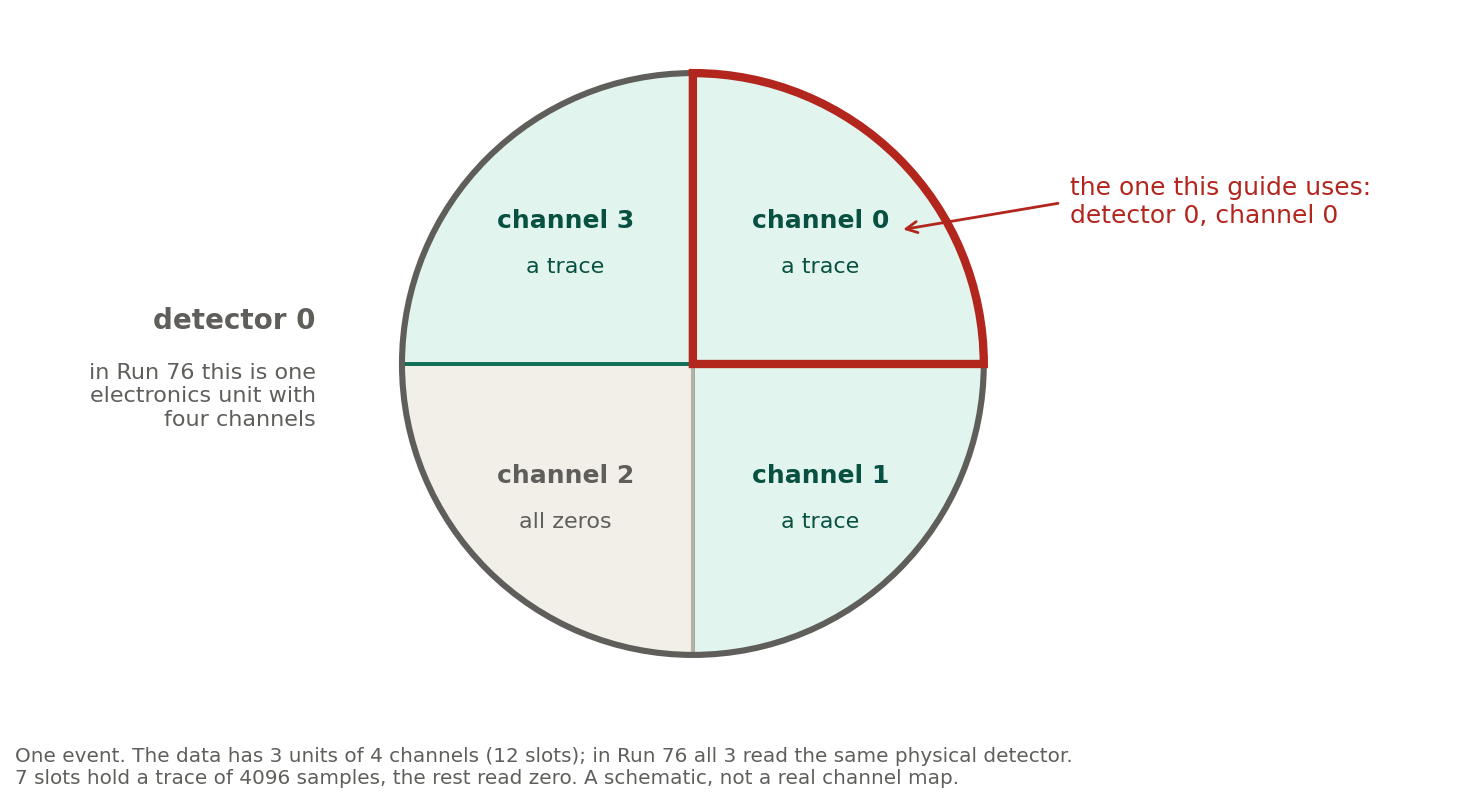
Figure 3. The four channels of detector 0 in one event. It is a schematic: the four sectors only stand for the channel numbers, and it does not show where the real sensors sit. The detector’s own sensor layout is similar to the SuperCDMS HV detector mask, but not the same.
A trace looks like a flat line with a little jitter (the baseline) until something happens. The first 500 samples, the pretrigger window, are used to measure the baseline. If a particle deposits energy, the trace jumps up at once and then slowly falls back: a pulse. In Figure 1, the pulse in event 11108 starts just after sample 500; in this dump, many pulses start there.
The pulse trace in Figure 1 is row 1095 of the table
pulses from Step 4 (the row is the position in the table,
not the event number). Row 1 is a quiet trace.
Appendix: the code, line by line
You do not need this to finish the guide. It goes through the code
you pasted, one line at a time: each line of code, and next to it, in
red, what it does. A line that begins with # is a comment:
Python ignores it, and it is there for people to read, so the comments
are left out here.
Part A. Step 4: load the data and count the traces
import sys
from pathlib import Path
Bring in two tools. sys controls where Python looks for
code. Path works with folder names in the same way on every
kind of computer.
here = Path.cwd().resolve()The folder Jupyter is working in, written out in full.
REPO = next((p for p in [here, *here.parents]
             if (p / "python" / "pulse_io.py").exists()), None)
Look at here and then at each folder above it, one after
another, and take the first one that contains the file
python\pulse_io.py. That folder is the whole NSDF-Data
project. If there is none, REPO is None.
assert REPO, "Start Jupyter from inside the NSDF-Data folder."Stop with that message if the project was not found, which means Jupyter was started in the wrong place.
sys.path.insert(0, str(REPO / "python"))Tell Python to look in the project’s python folder
first, so that the next import lines can find the project’s
own code.
from nsdf_dark_matter.idx import load_all_dataBring in the function, from the NSDF software, that reads a downloaded dump.
import pulse_io as pioBring in the project’s helpers for traces. as pio gives
it a short name.
import check_environment
check_environment.check()
Bring in the project’s environment check and run it. It compares your
Python and your packages with the project’s list
(requirements.txt) and prints Environment OK,
or a WARNING that says what differs and where to read how
to fix it. It is only a warning: your notebook carries on either
way.
cdms = load_all_data(str(Path.home() / "idx" / "07221203_2025_F0001"))Open the dump you downloaded in Step 2. Path.home() is
your home folder, and / "idx" / "07221203_2025_F0001"
follows the path down to the dump, the same folder Step 2 created. The
whole dump is read into the computer’s memory and called
cdms.
ids, pulses = pio.load_channel_batch(
    cdms, pio.filter_by_detector(cdms.get_detector_ids(), 0), 0)
Read it from the inside out. cdms.get_detector_ids() is
the list of names of every group of traces (a name holds an event number
and a detector number). pio.filter_by_detector(..., 0)
keeps only the names for detector 0.
pio.load_channel_batch(cdms, ..., 0) takes channel 0 from
each of those and stacks the traces into one table. It gives back two
things: ids, the names in order, and pulses,
the table, with one row for each event and one column for each sample
(see Figure 2).
print(pulses.shape)Show the size of the table as (rows, columns). That is the
(1517, 4096) you checked.
Part B. Step 6: count the quiet traces
from dataclasses import replaceA tool for making a copy of a group of settings with one value changed.
from pulse_config import DEFAULT_CONFIGThe project’s standard settings, such as how many samples at the start of a trace count as the baseline window (1000 by default) and how many of the very first samples to skip because of the electronics glitch (10).
import pulse_quantities as pqFunctions that work out one number for each trace, such as how much its baseline wobbles.
import pulse_cuts as pcFunctions that answer yes or no for each trace: “keep this one?”
import numpy as npTools for working with tables of numbers.
c500 = replace(DEFAULT_CONFIG, pretrigger_samples=500)A copy of the standard settings in which the baseline window is the first 500 samples, as in Note 2.
quiet = pc.excursion_band(pulses, c500) & (
    np.log10(pq.bstd(pulses)) < 0.5)
Two yes-or-no tests joined by &, which means “and”.
The result, quiet, has one True or
False for each trace.
pc.excursion_band(pulses, c500) is True when
the trace’s largest swing after the baseline window, compared with the
wobble of its own baseline, falls in the middle band chosen in Note 2.
pq.bstd(pulses) is the wobble (the standard deviation) of
each trace’s baseline, and np.log10(...) < 0.5 keeps
only the traces whose baseline wobbles little: under about 3 counts.
print(quiet.sum())A True counts as 1 and a False as 0, so the
sum is the number of traces that passed both tests. That is the 179 of
the checkpoint.
Where to get help
Anthony Villano, project lead: anthony.villano@ucdenver.edu
When you write, include the step number, the command you typed, and the last few lines the computer printed. A screenshot helps. Nobody will be annoyed by a question about a step that did not work.
Session Info
Guide version 22, 19 October 2026, Windows edition. Written for beginners; please tell the project lead where a step was unclear.
Key links
- Note 2: https://villano-lab.github.io/NSDF-Data/notes/note-02-noise-selection.html
- Note 2a: https://villano-lab.github.io/NSDF-Data/notes/note-02a-bstd-vs-time.html
- Note 1 (series catalog) and Note 1a (python library structure), for later: https://villano-lab.github.io/NSDF-Data/
- Repository: https://github.com/villano-lab/NSDF-Data
macOS edition
Your first analysis
What you will do. Download one set of real detector data, open it in a notebook, look at it, and reproduce one number from an existing note. You will need the setup guide for macOS finished first.
Before you start
- Time: about two hours.
- You need: the setup guide finished (your
environment
darkmatter_cli_envexists and works). - Check: open a terminal (Step 1 of the setup guide),
and run
conda activate darkmatter_cli_env. The start of the line should show(darkmatter_cli_env). - Folder: you do not need to be in any particular folder yet. Each step below tells you where to go.
Keep your setup up to date. The first code cell in Step 4 checks your environment against the project’s current list and warns you if it is out of date. If you see a WARNING, follow Updating your setup. Do the same after every new release the project lead announces.
Words you will meet
| Word | What it means here |
|---|---|
| Series | One data-taking session, named like 07221203_2025. The
first two digits are the test facility (07 is UMN, the
University of Minnesota); the rest are the date and time the series
started, here 221203 (year, month, day: 3 December 2022)
and 2025 (20:25). A typical series lasts hours; some are
shorter because they are tests. |
| Dump | One file set taken from a series, numbered F0001,
F0002, … |
| Event | One moment when the system decided something might have happened and saved a short recording from every detector. Events are numbered in time order. See Figure 2, and the appendix. |
| Detector | In this data, a “detector” number (0, 1 or 2) means one readout electronics unit, not a separate crystal. All three units are wired to the same physical detector, S104. |
| Channel | One of the four sensor outputs of a readout unit, numbered 0 to 3. Each channel records its own trace. We use detector 0, channel 0 (Figure 2). |
| Trace | The recorded signal for one channel in one event: 4096 numbers, one per sample. |
| Sample | One reading of the readout circuit’s output (usually a voltage or a current). Each sample is 1.6 microseconds long, and is the average of the output over that time. |
| ADC counts | The units of a sample. The analog-to-digital converter (ADC) turns each reading into a whole number (an integer), proportional to the measured voltage or current. In this dump the largest are around 8000, so they need at least 13 bits; the exact width is not stated in this guide. |
| Baseline | The flat level a trace sits at when nothing happens. |
| Pretrigger window | The first samples of a trace, used to measure the baseline. |
| Pulse | A sudden rise above the baseline that then slowly falls back. It is what a particle leaves in a trace. |
Figure 1. Two traces on the same scale. Top: noise only. Bottom: a pulse.
Figure 2. How the data is organised, and which part
this guide follows (blue). A series is split into dumps; a dump holds
events; each event has a trace from every channel of every detector; a
trace is 4096 samples. The code in Step 4 picks detector 0, channel 0
from every event of dump F0001, so each row of the table
pulses is one event, and pulses[row, sample]
is one number.
Step 1. Read two notes first (about 30 minutes)
Open the notes site at villano-lab.github.io/NSDF-Data and read these, in order:
- Note 2, Noise-pulse selection: how we pick quiet traces. It uses the same dump you will download.
- Note 2a, bstd against time: how the baseline noise of those traces changes from event to event, in the same dump.
You do not need to follow every number. Just learn the words in the table above.
Step 2. Download the data
First go to your home folder, so the data lands in the right place. Type this, then press Enter:
cd ~Now download the data:
nsdf-cli download 07221203_2025_F0001The download puts the data in an idx folder in
the folder you are in. Because you went to your home folder
first, it lands in ~/idx, inside a folder named
07221203_2025_F0001. The data is about 34 MB. Wait until
the prompt comes back.
Never download from inside the NSDF-Data folder. Its
idx folder would sit inside the project, where Git can pick
it up. If you have already downloaded there, move the idx
folder to your home folder, and tell your lead.
What these lines do: the first one moves you to your
home folder (the cd line). The second,
nsdf-cli download, fetches the data set from the NSDF
servers over the internet and puts it in a new idx
folder.
Optional: tell nsdf-cli once where downloads
go. Type this one time, and every later download goes to your
idx folder, whichever folder you are in:
nsdf-cli config --output-global ~/idxType nsdf-cli config to see the setting. It is saved in
a small file in your home folder (.nexus-dm/config.json),
so you do not repeat it. Two more nsdf-cli options you may
see: nsdf-cli download SERIES --all downloads
every dump of a series (the series in this guide has 30
dumps, about 1.9 GB), so do not use --all unless your lead
says to; and nsdf-cli prune removes the downloaded series
from your download folder to free disk space (it shows the folder and
asks before it deletes anything).
Do not move or edit the downloaded files, and do not add them to Git. They are external data, not part of our data analysis code in the NSDF-Data repository.
If the message says the folder already exists, the data may already
be there. To check, type ls ~/idx: if the list
shows a folder named 07221203_2025_F0001, you already have
it, and an error message means there is no idx folder yet.
Ask the project lead before you delete anything.
Step 3. Open Jupyter in the right folder
Every student works in a folder of their own, inside
data_analysis/R76/student in the project. Use the same name
as in your branch name (student-yourname), without spaces,
in place of yourname. In the terminal, type these
lines:
conda activate darkmatter_cli_env
cd ~/Research/NSDF-Data/data_analysis/R76/student
mkdir yourname
cd yourname
jupyter lab
What these lines do: conda activate
switches your environment on, cd moves you into the folder
where the students’ notebooks live, mkdir yourname makes
your own folder there (if it says the folder already exists, that is
fine: you made it before), cd yourname moves you into it,
and jupyter lab starts the notebook program. Leave
this terminal window open while you work: closing it stops
Jupyter.
Your web browser opens a Jupyter page. Click File, then New, then Notebook. If it asks which kernel to use, choose darkmatter_cli_env.
A notebook is a list of boxes called cells. Type code in a cell and press Shift + Enter to run it. The result appears under the cell. Press Enter (without Shift) to keep typing in the same cell.
Give your notebook a name: right-click its tab at the top (it says
Untitled.ipynb) and choose Rename
Notebook. In the box, replace Untitled with
first-analysis-yourname (keep .ipynb at the
end) and click Rename.
Step 4. Load the data and count the traces
Copy this into the first cell and press Shift + Enter:
import sys
from pathlib import Path

# Tell Python where the pulse library (the python folder) is.
# This looks upward from the notebook's folder until it finds the project,
# so it works wherever in the project your notebook is.
here = Path.cwd().resolve()
REPO = next((p for p in [here, *here.parents] if (p / "python" / "pulse_io.py").exists()), None)
assert REPO, "Start Jupyter from inside the NSDF-Data folder."
sys.path.insert(0, str(REPO / "python"))

from nsdf_dark_matter.idx import load_all_data
import pulse_io as pio

# Check that your setup is up to date (it only warns; it never stops the notebook).
import check_environment
check_environment.check()

# Open the dump you downloaded.
cdms = load_all_data(str(Path.home() / "idx" / "07221203_2025_F0001"))

# Take every trace from detector 0, channel 0, into one table.
ids, pulses = pio.load_channel_batch(
    cdms, pio.filter_by_detector(cdms.get_detector_ids(), 0), 0)

print(pulses.shape)
The first line says Environment OK, and the last is
(1517, 4096): 1517 traces, each with 4096 samples. If you
get a different number, stop and check the dump name and the folder in
Step 2. If the first line says WARNING, you can keep going
for now, but follow Updating your setup soon.
Want to know what every line did? See the code, line by line (part A).
Step 5. Look at a trace
Click in the empty cell under the one you just ran: Jupyter adds one each time you press Shift + Enter. If there is none, click + in the toolbar to add one. Put this in it and run it:
import matplotlib.pyplot as plt

plt.plot(pulses[0])
plt.xlabel("sample (1.6 microseconds each)")
plt.ylabel("ADC counts")
plt.show()
Now change the 0 to 1 and run again, then
try 2 and 3, one number at a time.
(pulses[1,2,3] does not pick three traces: it is an error,
because the first number counts rows and the others count samples.) Most
traces look like flat noise, with a little jitter. Row 1 is a quiet
trace like the top one in Figure 1. To see a pulse, try
row 1095. Then see the appendix if you want
to know more about what you are looking at.
Step 6. Reproduce a number from Note 2
Note 2 says that for this dump, a strict selection leaves 179 quiet traces. Run this in the next empty cell (add one with + if there is none):
from dataclasses import replace
from pulse_config import DEFAULT_CONFIG
import pulse_quantities as pq
import pulse_cuts as pc
import numpy as np

c500 = replace(DEFAULT_CONFIG, pretrigger_samples=500)
quiet = pc.excursion_band(pulses, c500) & (np.log10(pq.bstd(pulses)) < 0.5)
print(quiet.sum())
The output is 179. If you see a different number, that is worth knowing. Write down the number you got and the steps you took, and tell the project lead. Do not change the project’s code to make the number match.
Want to know what every line did? See the code, line by line (part B).
Step 7. Write down what you did
In Jupyter, click + to add a cell and change its type from Code to Markdown in the toolbar. In that cell, write a few sentences in plain English: what you loaded, what you plotted, and what number you got. Then press Shift + Enter.
Save with Command + S (macOS) or Ctrl + S (Windows and Linux).
Once your branch exists (setup guide, Step 8), save your notebook to Git. The first terminal is busy: it is still running Jupyter, so leave it open. Open a new terminal for the Git commands. A new terminal starts in your home folder, so the first line below moves you into the project folder from the setup guide:
cd ~/Research/NSDF-Data
git branch --show-current
git status
git add data_analysis/R76/student/yourname/first-analysis-yourname.ipynb
git commit -m "First analysis: load dump 1 and count the quiet traces"
git push -u origin student-yourname
What these lines do: the first one moves you into
the project. git branch --show-current prints the name of
the branch you are on, and git status lists what has
changed since your last save. Make this a habit: every time you
open a terminal in a project, look at the branch and the status before
you do anything else. Then git add picks the file
you want to save, git commit saves a snapshot of it with
your short message, and git push uploads that snapshot to
GitHub, to your own branch.
git branch --show-current prints
student-yourname (your own branch), and
git status starts with
On branch student-yourname and lists your notebook under
Untracked files (a new file) or Changes not
staged for commit (a file you changed). If the branch is
develop or master, stop and ask the project
lead: do not commit there.
Commit only your notebook. Check the list from
git status before committing. If you see .bin
files or anything from the idx folder, do not add them.
You are done when
Common problems
| What you see | What to do |
|---|---|
ModuleNotFoundError: No module named 'nsdf_dark_matter' |
You are not in the environment. Run conda activate darkmatter_cli_env, then restart the
notebook kernel (Kernel, then Restart
Kernel). |
ModuleNotFoundError: No module named 'pulse_io' |
Jupyter was started from the wrong folder. Close it and start it
again from your own folder in data_analysis/R76/student
(Step 3). |
fatal: pathspec '...' did not match any files when you
run git add |
You are not in the project folder, or the file name is not the one
you saved. Open a terminal (Step 1 of the setup guide), run cd ~/Research/NSDF-Data, then git status, and copy the notebook’s path exactly as
Git prints it into git add. |
IndexError: too many indices for array |
You wrote something like pulses[1,2,3]. Put one number
in the brackets, for example pulses[1], and run the cell
again. |
FileNotFoundError on the dump folder |
The download did not finish, or it went somewhere else. Check the folder in Step 2. |
| A huge spike at the very start of traces | This is a real electronics glitch in the first few samples, not a bug. It is explained in Note 2a. |
The kernel is not darkmatter_cli_env |
Click the kernel name at the top right and choose darkmatter_cli_env. |
Do not run 07221203_2025_dump1_noise.ipynb unless the
project lead says it is fine. It overwrites a shared archive file.
Appendix: what an event looks like
You do not need this to finish the guide. It explains the words in the table at the top.
The detector system watches its sensors all the time. Whenever it decides that something may have happened, it saves a short recording from every sensor. That moment is one event. Events are numbered in time order, and the numbers restart in every dump, so an event number alone does not identify an event.
In Run 76 one physical detector (a silicon detector, S104) is read out by three older (“legacy”) electronics units, each with four channels, all connected to that same detector. The software calls the units detector 0, 1 and 2, and so does this guide. One event therefore holds up to 3 x 4 = 12 recordings. Each recording is a trace: 4096 numbers, one per sample. In this dump, 7 of the 12 slots hold a trace and the other 5 read all zeros. We follow one channel, detector 0 channel 0, through all 1517 events.
Figure 3. The four channels of detector 0 in one event. It is a schematic: the four sectors only stand for the channel numbers, and it does not show where the real sensors sit. The detector’s own sensor layout is similar to the SuperCDMS HV detector mask, but not the same.
A trace looks like a flat line with a little jitter (the baseline) until something happens. The first 500 samples, the pretrigger window, are used to measure the baseline. If a particle deposits energy, the trace jumps up at once and then slowly falls back: a pulse. In Figure 1, the pulse in event 11108 starts just after sample 500; in this dump, many pulses start there.
The pulse trace in Figure 1 is row 1095 of the table
pulses from Step 4 (the row is the position in the table,
not the event number). Row 1 is a quiet trace.
Appendix: the code, line by line
You do not need this to finish the guide. It goes through the code
you pasted, one line at a time: each line of code, and next to it, in
red, what it does. A line that begins with # is a comment:
Python ignores it, and it is there for people to read, so the comments
are left out here.
Part A. Step 4: load the data and count the traces
import sys
from pathlib import Path
Bring in two tools. sys controls where Python looks for
code. Path works with folder names in the same way on every
kind of computer.
here = Path.cwd().resolve()The folder Jupyter is working in, written out in full.
REPO = next((p for p in [here, *here.parents]
             if (p / "python" / "pulse_io.py").exists()), None)
Look at here and then at each folder above it, one after
another, and take the first one that contains the file
python/pulse_io.py. That folder is the whole NSDF-Data
project. If there is none, REPO is None.
assert REPO, "Start Jupyter from inside the NSDF-Data folder."Stop with that message if the project was not found, which means Jupyter was started in the wrong place.
sys.path.insert(0, str(REPO / "python"))Tell Python to look in the project’s python folder
first, so that the next import lines can find the project’s
own code.
from nsdf_dark_matter.idx import load_all_dataBring in the function, from the NSDF software, that reads a downloaded dump.
import pulse_io as pioBring in the project’s helpers for traces. as pio gives
it a short name.
import check_environment
check_environment.check()
Bring in the project’s environment check and run it. It compares your
Python and your packages with the project’s list
(requirements.txt) and prints Environment OK,
or a WARNING that says what differs and where to read how
to fix it. It is only a warning: your notebook carries on either
way.
cdms = load_all_data(str(Path.home() / "idx" / "07221203_2025_F0001"))Open the dump you downloaded in Step 2. Path.home() is
your home folder, and / "idx" / "07221203_2025_F0001"
follows the path down to the dump, the same folder Step 2 created. The
whole dump is read into the computer’s memory and called
cdms.
ids, pulses = pio.load_channel_batch(
    cdms, pio.filter_by_detector(cdms.get_detector_ids(), 0), 0)
Read it from the inside out. cdms.get_detector_ids() is
the list of names of every group of traces (a name holds an event number
and a detector number). pio.filter_by_detector(..., 0)
keeps only the names for detector 0.
pio.load_channel_batch(cdms, ..., 0) takes channel 0 from
each of those and stacks the traces into one table. It gives back two
things: ids, the names in order, and pulses,
the table, with one row for each event and one column for each sample
(see Figure 2).
print(pulses.shape)Show the size of the table as (rows, columns). That is the
(1517, 4096) you checked.
Part B. Step 6: count the quiet traces
from dataclasses import replaceA tool for making a copy of a group of settings with one value changed.
from pulse_config import DEFAULT_CONFIGThe project’s standard settings, such as how many samples at the start of a trace count as the baseline window (1000 by default) and how many of the very first samples to skip because of the electronics glitch (10).
import pulse_quantities as pqFunctions that work out one number for each trace, such as how much its baseline wobbles.
import pulse_cuts as pcFunctions that answer yes or no for each trace: “keep this one?”
import numpy as npTools for working with tables of numbers.
c500 = replace(DEFAULT_CONFIG, pretrigger_samples=500)A copy of the standard settings in which the baseline window is the first 500 samples, as in Note 2.
quiet = pc.excursion_band(pulses, c500) & (
    np.log10(pq.bstd(pulses)) < 0.5)
Two yes-or-no tests joined by &, which means “and”.
The result, quiet, has one True or
False for each trace.
pc.excursion_band(pulses, c500) is True when
the trace’s largest swing after the baseline window, compared with the
wobble of its own baseline, falls in the middle band chosen in Note 2.
pq.bstd(pulses) is the wobble (the standard deviation) of
each trace’s baseline, and np.log10(...) < 0.5 keeps
only the traces whose baseline wobbles little: under about 3 counts.
print(quiet.sum())A True counts as 1 and a False as 0, so the
sum is the number of traces that passed both tests. That is the 179 of
the checkpoint.
Where to get help
Anthony Villano, project lead: anthony.villano@ucdenver.edu
When you write, include the step number, the command you typed, and the last few lines the computer printed. A screenshot helps. Nobody will be annoyed by a question about a step that did not work.
Session Info
Guide version 22, 19 October 2026, macOS edition. Written for beginners; please tell the project lead where a step was unclear.
Key links
- Note 2: https://villano-lab.github.io/NSDF-Data/notes/note-02-noise-selection.html
- Note 2a: https://villano-lab.github.io/NSDF-Data/notes/note-02a-bstd-vs-time.html
- Note 1 (series catalog) and Note 1a (python library structure), for later: https://villano-lab.github.io/NSDF-Data/
- Repository: https://github.com/villano-lab/NSDF-Data
Linux edition
Your first analysis
What you will do. Download one set of real detector data, open it in a notebook, look at it, and reproduce one number from an existing note. You will need the setup guide for Linux finished first.
Before you start
- Time: about two hours.
- You need: the setup guide finished (your
environment
darkmatter_cli_envexists and works). - Check: open a terminal (Step 1 of the setup guide),
and run
conda activate darkmatter_cli_env. The start of the line should show(darkmatter_cli_env). - Folder: you do not need to be in any particular folder yet. Each step below tells you where to go.
Keep your setup up to date. The first code cell in Step 4 checks your environment against the project’s current list and warns you if it is out of date. If you see a WARNING, follow Updating your setup. Do the same after every new release the project lead announces.
Words you will meet
| Word | What it means here |
|---|---|
| Series | One data-taking session, named like 07221203_2025. The
first two digits are the test facility (07 is UMN, the
University of Minnesota); the rest are the date and time the series
started, here 221203 (year, month, day: 3 December 2022)
and 2025 (20:25). A typical series lasts hours; some are
shorter because they are tests. |
| Dump | One file set taken from a series, numbered F0001,
F0002, … |
| Event | One moment when the system decided something might have happened and saved a short recording from every detector. Events are numbered in time order. See Figure 2, and the appendix. |
| Detector | In this data, a “detector” number (0, 1 or 2) means one readout electronics unit, not a separate crystal. All three units are wired to the same physical detector, S104. |
| Channel | One of the four sensor outputs of a readout unit, numbered 0 to 3. Each channel records its own trace. We use detector 0, channel 0 (Figure 2). |
| Trace | The recorded signal for one channel in one event: 4096 numbers, one per sample. |
| Sample | One reading of the readout circuit’s output (usually a voltage or a current). Each sample is 1.6 microseconds long, and is the average of the output over that time. |
| ADC counts | The units of a sample. The analog-to-digital converter (ADC) turns each reading into a whole number (an integer), proportional to the measured voltage or current. In this dump the largest are around 8000, so they need at least 13 bits; the exact width is not stated in this guide. |
| Baseline | The flat level a trace sits at when nothing happens. |
| Pretrigger window | The first samples of a trace, used to measure the baseline. |
| Pulse | A sudden rise above the baseline that then slowly falls back. It is what a particle leaves in a trace. |
Figure 1. Two traces on the same scale. Top: noise only. Bottom: a pulse.
Figure 2. How the data is organised, and which part
this guide follows (blue). A series is split into dumps; a dump holds
events; each event has a trace from every channel of every detector; a
trace is 4096 samples. The code in Step 4 picks detector 0, channel 0
from every event of dump F0001, so each row of the table
pulses is one event, and pulses[row, sample]
is one number.
Step 1. Read two notes first (about 30 minutes)
Open the notes site at villano-lab.github.io/NSDF-Data and read these, in order:
- Note 2, Noise-pulse selection: how we pick quiet traces. It uses the same dump you will download.
- Note 2a, bstd against time: how the baseline noise of those traces changes from event to event, in the same dump.
You do not need to follow every number. Just learn the words in the table above.
Step 2. Download the data
First go to your home folder, so the data lands in the right place. Type this, then press Enter:
cd ~Now download the data:
nsdf-cli download 07221203_2025_F0001The download puts the data in an idx folder in
the folder you are in. Because you went to your home folder
first, it lands in ~/idx, inside a folder named
07221203_2025_F0001. The data is about 34 MB. Wait until
the prompt comes back.
Never download from inside the NSDF-Data folder. Its
idx folder would sit inside the project, where Git can pick
it up. If you have already downloaded there, move the idx
folder to your home folder, and tell your lead.
What these lines do: the first one moves you to your
home folder (the cd line). The second,
nsdf-cli download, fetches the data set from the NSDF
servers over the internet and puts it in a new idx
folder.
Optional: tell nsdf-cli once where downloads
go. Type this one time, and every later download goes to your
idx folder, whichever folder you are in:
nsdf-cli config --output-global ~/idxType nsdf-cli config to see the setting. It is saved in
a small file in your home folder (.nexus-dm/config.json),
so you do not repeat it. Two more nsdf-cli options you may
see: nsdf-cli download SERIES --all downloads
every dump of a series (the series in this guide has 30
dumps, about 1.9 GB), so do not use --all unless your lead
says to; and nsdf-cli prune removes the downloaded series
from your download folder to free disk space (it shows the folder and
asks before it deletes anything).
Do not move or edit the downloaded files, and do not add them to Git. They are external data, not part of our data analysis code in the NSDF-Data repository.
If the message says the folder already exists, the data may already
be there. To check, type ls ~/idx: if the list
shows a folder named 07221203_2025_F0001, you already have
it, and an error message means there is no idx folder yet.
Ask the project lead before you delete anything.
Step 3. Open Jupyter in the right folder
Every student works in a folder of their own, inside
data_analysis/R76/student in the project. Use the same name
as in your branch name (student-yourname), without spaces,
in place of yourname. In the terminal, type these
lines:
conda activate darkmatter_cli_env
cd ~/Research/NSDF-Data/data_analysis/R76/student
mkdir yourname
cd yourname
jupyter lab
What these lines do: conda activate
switches your environment on, cd moves you into the folder
where the students’ notebooks live, mkdir yourname makes
your own folder there (if it says the folder already exists, that is
fine: you made it before), cd yourname moves you into it,
and jupyter lab starts the notebook program. Leave
this terminal window open while you work: closing it stops
Jupyter.
Your web browser opens a Jupyter page. Click File, then New, then Notebook. If it asks which kernel to use, choose darkmatter_cli_env.
A notebook is a list of boxes called cells. Type code in a cell and press Shift + Enter to run it. The result appears under the cell. Press Enter (without Shift) to keep typing in the same cell.
Give your notebook a name: right-click its tab at the top (it says
Untitled.ipynb) and choose Rename
Notebook. In the box, replace Untitled with
first-analysis-yourname (keep .ipynb at the
end) and click Rename.
Step 4. Load the data and count the traces
Copy this into the first cell and press Shift + Enter:
import sys
from pathlib import Path

# Tell Python where the pulse library (the python folder) is.
# This looks upward from the notebook's folder until it finds the project,
# so it works wherever in the project your notebook is.
here = Path.cwd().resolve()
REPO = next((p for p in [here, *here.parents] if (p / "python" / "pulse_io.py").exists()), None)
assert REPO, "Start Jupyter from inside the NSDF-Data folder."
sys.path.insert(0, str(REPO / "python"))

from nsdf_dark_matter.idx import load_all_data
import pulse_io as pio

# Check that your setup is up to date (it only warns; it never stops the notebook).
import check_environment
check_environment.check()

# Open the dump you downloaded.
cdms = load_all_data(str(Path.home() / "idx" / "07221203_2025_F0001"))

# Take every trace from detector 0, channel 0, into one table.
ids, pulses = pio.load_channel_batch(
    cdms, pio.filter_by_detector(cdms.get_detector_ids(), 0), 0)

print(pulses.shape)
The first line says Environment OK, and the last is
(1517, 4096): 1517 traces, each with 4096 samples. If you
get a different number, stop and check the dump name and the folder in
Step 2. If the first line says WARNING, you can keep going
for now, but follow Updating your setup soon.
Want to know what every line did? See the code, line by line (part A).
Step 5. Look at a trace
Click in the empty cell under the one you just ran: Jupyter adds one each time you press Shift + Enter. If there is none, click + in the toolbar to add one. Put this in it and run it:
import matplotlib.pyplot as plt

plt.plot(pulses[0])
plt.xlabel("sample (1.6 microseconds each)")
plt.ylabel("ADC counts")
plt.show()
Now change the 0 to 1 and run again, then
try 2 and 3, one number at a time.
(pulses[1,2,3] does not pick three traces: it is an error,
because the first number counts rows and the others count samples.) Most
traces look like flat noise, with a little jitter. Row 1 is a quiet
trace like the top one in Figure 1. To see a pulse, try
row 1095. Then see the appendix if you want
to know more about what you are looking at.
Step 6. Reproduce a number from Note 2
Note 2 says that for this dump, a strict selection leaves 179 quiet traces. Run this in the next empty cell (add one with + if there is none):
from dataclasses import replace
from pulse_config import DEFAULT_CONFIG
import pulse_quantities as pq
import pulse_cuts as pc
import numpy as np

c500 = replace(DEFAULT_CONFIG, pretrigger_samples=500)
quiet = pc.excursion_band(pulses, c500) & (np.log10(pq.bstd(pulses)) < 0.5)
print(quiet.sum())
The output is 179. If you see a different number, that is worth knowing. Write down the number you got and the steps you took, and tell the project lead. Do not change the project’s code to make the number match.
Want to know what every line did? See the code, line by line (part B).
Step 7. Write down what you did
In Jupyter, click + to add a cell and change its type from Code to Markdown in the toolbar. In that cell, write a few sentences in plain English: what you loaded, what you plotted, and what number you got. Then press Shift + Enter.
Save with Command + S (macOS) or Ctrl + S (Windows and Linux).
Once your branch exists (setup guide, Step 8), save your notebook to Git. The first terminal is busy: it is still running Jupyter, so leave it open. Open a new terminal for the Git commands. A new terminal starts in your home folder, so the first line below moves you into the project folder from the setup guide:
cd ~/Research/NSDF-Data
git branch --show-current
git status
git add data_analysis/R76/student/yourname/first-analysis-yourname.ipynb
git commit -m "First analysis: load dump 1 and count the quiet traces"
git push -u origin student-yourname
What these lines do: the first one moves you into
the project. git branch --show-current prints the name of
the branch you are on, and git status lists what has
changed since your last save. Make this a habit: every time you
open a terminal in a project, look at the branch and the status before
you do anything else. Then git add picks the file
you want to save, git commit saves a snapshot of it with
your short message, and git push uploads that snapshot to
GitHub, to your own branch.
git branch --show-current prints
student-yourname (your own branch), and
git status starts with
On branch student-yourname and lists your notebook under
Untracked files (a new file) or Changes not
staged for commit (a file you changed). If the branch is
develop or master, stop and ask the project
lead: do not commit there.
Commit only your notebook. Check the list from
git status before committing. If you see .bin
files or anything from the idx folder, do not add them.
You are done when
Common problems
| What you see | What to do |
|---|---|
ModuleNotFoundError: No module named 'nsdf_dark_matter' |
You are not in the environment. Run conda activate darkmatter_cli_env, then restart the
notebook kernel (Kernel, then Restart
Kernel). |
ModuleNotFoundError: No module named 'pulse_io' |
Jupyter was started from the wrong folder. Close it and start it
again from your own folder in data_analysis/R76/student
(Step 3). |
fatal: pathspec '...' did not match any files when you
run git add |
You are not in the project folder, or the file name is not the one
you saved. Open a terminal (Step 1 of the setup guide), run cd ~/Research/NSDF-Data, then git status, and copy the notebook’s path exactly as
Git prints it into git add. |
IndexError: too many indices for array |
You wrote something like pulses[1,2,3]. Put one number
in the brackets, for example pulses[1], and run the cell
again. |
FileNotFoundError on the dump folder |
The download did not finish, or it went somewhere else. Check the folder in Step 2. |
| A huge spike at the very start of traces | This is a real electronics glitch in the first few samples, not a bug. It is explained in Note 2a. |
The kernel is not darkmatter_cli_env |
Click the kernel name at the top right and choose darkmatter_cli_env. |
Do not run 07221203_2025_dump1_noise.ipynb unless the
project lead says it is fine. It overwrites a shared archive file.
Appendix: what an event looks like
You do not need this to finish the guide. It explains the words in the table at the top.
The detector system watches its sensors all the time. Whenever it decides that something may have happened, it saves a short recording from every sensor. That moment is one event. Events are numbered in time order, and the numbers restart in every dump, so an event number alone does not identify an event.
In Run 76 one physical detector (a silicon detector, S104) is read out by three older (“legacy”) electronics units, each with four channels, all connected to that same detector. The software calls the units detector 0, 1 and 2, and so does this guide. One event therefore holds up to 3 x 4 = 12 recordings. Each recording is a trace: 4096 numbers, one per sample. In this dump, 7 of the 12 slots hold a trace and the other 5 read all zeros. We follow one channel, detector 0 channel 0, through all 1517 events.
Figure 3. The four channels of detector 0 in one event. It is a schematic: the four sectors only stand for the channel numbers, and it does not show where the real sensors sit. The detector’s own sensor layout is similar to the SuperCDMS HV detector mask, but not the same.
A trace looks like a flat line with a little jitter (the baseline) until something happens. The first 500 samples, the pretrigger window, are used to measure the baseline. If a particle deposits energy, the trace jumps up at once and then slowly falls back: a pulse. In Figure 1, the pulse in event 11108 starts just after sample 500; in this dump, many pulses start there.
The pulse trace in Figure 1 is row 1095 of the table
pulses from Step 4 (the row is the position in the table,
not the event number). Row 1 is a quiet trace.
Appendix: the code, line by line
You do not need this to finish the guide. It goes through the code
you pasted, one line at a time: each line of code, and next to it, in
red, what it does. A line that begins with # is a comment:
Python ignores it, and it is there for people to read, so the comments
are left out here.
Part A. Step 4: load the data and count the traces
import sys
from pathlib import Path
Bring in two tools. sys controls where Python looks for
code. Path works with folder names in the same way on every
kind of computer.
here = Path.cwd().resolve()The folder Jupyter is working in, written out in full.
REPO = next((p for p in [here, *here.parents]
             if (p / "python" / "pulse_io.py").exists()), None)
Look at here and then at each folder above it, one after
another, and take the first one that contains the file
python/pulse_io.py. That folder is the whole NSDF-Data
project. If there is none, REPO is None.
assert REPO, "Start Jupyter from inside the NSDF-Data folder."Stop with that message if the project was not found, which means Jupyter was started in the wrong place.
sys.path.insert(0, str(REPO / "python"))Tell Python to look in the project’s python folder
first, so that the next import lines can find the project’s
own code.
from nsdf_dark_matter.idx import load_all_dataBring in the function, from the NSDF software, that reads a downloaded dump.
import pulse_io as pioBring in the project’s helpers for traces. as pio gives
it a short name.
import check_environment
check_environment.check()
Bring in the project’s environment check and run it. It compares your
Python and your packages with the project’s list
(requirements.txt) and prints Environment OK,
or a WARNING that says what differs and where to read how
to fix it. It is only a warning: your notebook carries on either
way.
cdms = load_all_data(str(Path.home() / "idx" / "07221203_2025_F0001"))Open the dump you downloaded in Step 2. Path.home() is
your home folder, and / "idx" / "07221203_2025_F0001"
follows the path down to the dump, the same folder Step 2 created. The
whole dump is read into the computer’s memory and called
cdms.
ids, pulses = pio.load_channel_batch(
    cdms, pio.filter_by_detector(cdms.get_detector_ids(), 0), 0)
Read it from the inside out. cdms.get_detector_ids() is
the list of names of every group of traces (a name holds an event number
and a detector number). pio.filter_by_detector(..., 0)
keeps only the names for detector 0.
pio.load_channel_batch(cdms, ..., 0) takes channel 0 from
each of those and stacks the traces into one table. It gives back two
things: ids, the names in order, and pulses,
the table, with one row for each event and one column for each sample
(see Figure 2).
print(pulses.shape)Show the size of the table as (rows, columns). That is the
(1517, 4096) you checked.
Part B. Step 6: count the quiet traces
from dataclasses import replaceA tool for making a copy of a group of settings with one value changed.
from pulse_config import DEFAULT_CONFIGThe project’s standard settings, such as how many samples at the start of a trace count as the baseline window (1000 by default) and how many of the very first samples to skip because of the electronics glitch (10).
import pulse_quantities as pqFunctions that work out one number for each trace, such as how much its baseline wobbles.
import pulse_cuts as pcFunctions that answer yes or no for each trace: “keep this one?”
import numpy as npTools for working with tables of numbers.
c500 = replace(DEFAULT_CONFIG, pretrigger_samples=500)A copy of the standard settings in which the baseline window is the first 500 samples, as in Note 2.
quiet = pc.excursion_band(pulses, c500) & (
    np.log10(pq.bstd(pulses)) < 0.5)
Two yes-or-no tests joined by &, which means “and”.
The result, quiet, has one True or
False for each trace.
pc.excursion_band(pulses, c500) is True when
the trace’s largest swing after the baseline window, compared with the
wobble of its own baseline, falls in the middle band chosen in Note 2.
pq.bstd(pulses) is the wobble (the standard deviation) of
each trace’s baseline, and np.log10(...) < 0.5 keeps
only the traces whose baseline wobbles little: under about 3 counts.
print(quiet.sum())A True counts as 1 and a False as 0, so the
sum is the number of traces that passed both tests. That is the 179 of
the checkpoint.
Where to get help
Anthony Villano, project lead: anthony.villano@ucdenver.edu
When you write, include the step number, the command you typed, and the last few lines the computer printed. A screenshot helps. Nobody will be annoyed by a question about a step that did not work.
Session Info
Guide version 22, 19 October 2026, Linux edition. Written for beginners; please tell the project lead where a step was unclear.
Key links
- Note 2: https://villano-lab.github.io/NSDF-Data/notes/note-02-noise-selection.html
- Note 2a: https://villano-lab.github.io/NSDF-Data/notes/note-02a-bstd-vs-time.html
- Note 1 (series catalog) and Note 1a (python library structure), for later: https://villano-lab.github.io/NSDF-Data/
- Repository: https://github.com/villano-lab/NSDF-Data