Choose your computer above. This guide has one version for each, and the page remembers your choice.
Windows edition
Git in VS Code
This is guide 9, and it is optional. It does the same Git steps as the terminal guides, with buttons in VS Code instead of typed commands. If you are happy with the terminal, you do not need this guide. If a screen here does not match what you see, trust the terminal version, and tell your lead which step differed.
Before you start
- You finished the setup guide (guide 1) for Windows, including Step
8, which made your branch
student-yourname. - You have read Git in five minutes (guide 8). It explains the words used here: commit, branch, push, pull request.
- Time: about 15 minutes, plus the install in Step 1 if you do not have VS Code yet.
VS Code uses the Git that guide 1 installed, so nothing else has to be set up.
Step 1. Install VS Code
If you wrote a note in Markdown (guide 3), you already have it: skip to Step 2.
Go to code.visualstudio.com and
click the download button for Windows. Run the installer and keep every
default setting: click Next until you reach
Install, then click Install. When it
finishes, start VS Code from the Start menu (type
Visual Studio Code).
If Windows shows a blue “Windows protected your PC” box, click More info, then Run anyway, only if you downloaded the file from the link above.
VS Code starts and shows a Welcome page.
Step 2. Open the project folder
- Start VS Code.
- Choose File, then Open Folder, and
pick the
NSDF-Datafolder (the one in%USERPROFILE%\Research). - VS Code may ask whether you trust the authors of the files in this folder. This is your own copy of the project: choose Yes, I trust the authors.
Until you trust the folder, the Source Control tab (Step 4) stays empty and says that Git does not work in Restricted Mode. Nothing is broken: trust the folder and it fills in.
If you closed the question without answering it, click
Restricted Mode in the bottom-left status bar (it is
easy to miss on a large screen), or press Ctrl+Shift+P,
type Workspaces: Manage Workspace Trust, and
press Enter. Then choose Trust. VS
Code’s page on workspace trust explains it.
Step 3. Check your branch
Look at the bottom-left corner of the VS Code window. It shows the name of your branch.
The corner shows student-yourname (your own branch).
This is the same check as git branch --show-current in the
terminal guides.
If it shows develop or master, or a branch
that is not yours, switch to yours first: click the name in the corner
and pick student-yourname from the list. Changes you have
not committed yet come with you to your branch.
If VS Code or Git shows a warning when you switch
(for example that your changes would be overwritten), stop and
ask your lead, and do not force it. Do not commit, and do not
press Sync Changes, while the corner shows
develop or master: your own work belongs on
your own branch.
Step 4. Save your work as a commit
- Open Source Control: click the branch-shaped icon
in the bar on the left, or press
Ctrl+Shift+G. - Under Changes, every file you changed is listed with a letter: M for changed, U for new. Read the list before you do anything else.
The list contains only your own files (your notebook, your note, its
pictures). If it shows data files (a folder named idx, or
.bin files) or other people’s files, do not stage them: ask
your lead.
Move the mouse over one of your files and click the + (Stage Changes). The file moves to Staged Changes. Do this for each of your files. This is
git add.To stage several files at once: click the first, then Shift-click the last to select everything in between (or Ctrl-click to pick single files), and click the + on any selected file: it stages all of them.
Click the box that says Message and write what you changed, in a few words. This is the
-m "..."ofgit commit.Click Commit.
If VS Code says that there are no staged changes and asks whether to stage everything and commit, choose Cancel, and stage your files yourself with the + button. “Commit all” is how data files and other people’s files get in by mistake.
Step 5. Send your commits to GitHub
After a commit, the big button under the message box shows what is left to send.
- The first time on your branch, it reads Publish
Branch. Click it. If VS Code asks which remote, choose
origin. - After that, it reads Sync Changes with a number and an arrow. The up-arrow number is how many of your commits are waiting to go to GitHub. Click it to send them. A down-arrow number is how many commits on GitHub you do not have yet. Figure 1 shows what each case looks like.
- When your branch and GitHub already agree and you have nothing to commit, there is no Sync Changes button: the big button is a greyed-out Commit.
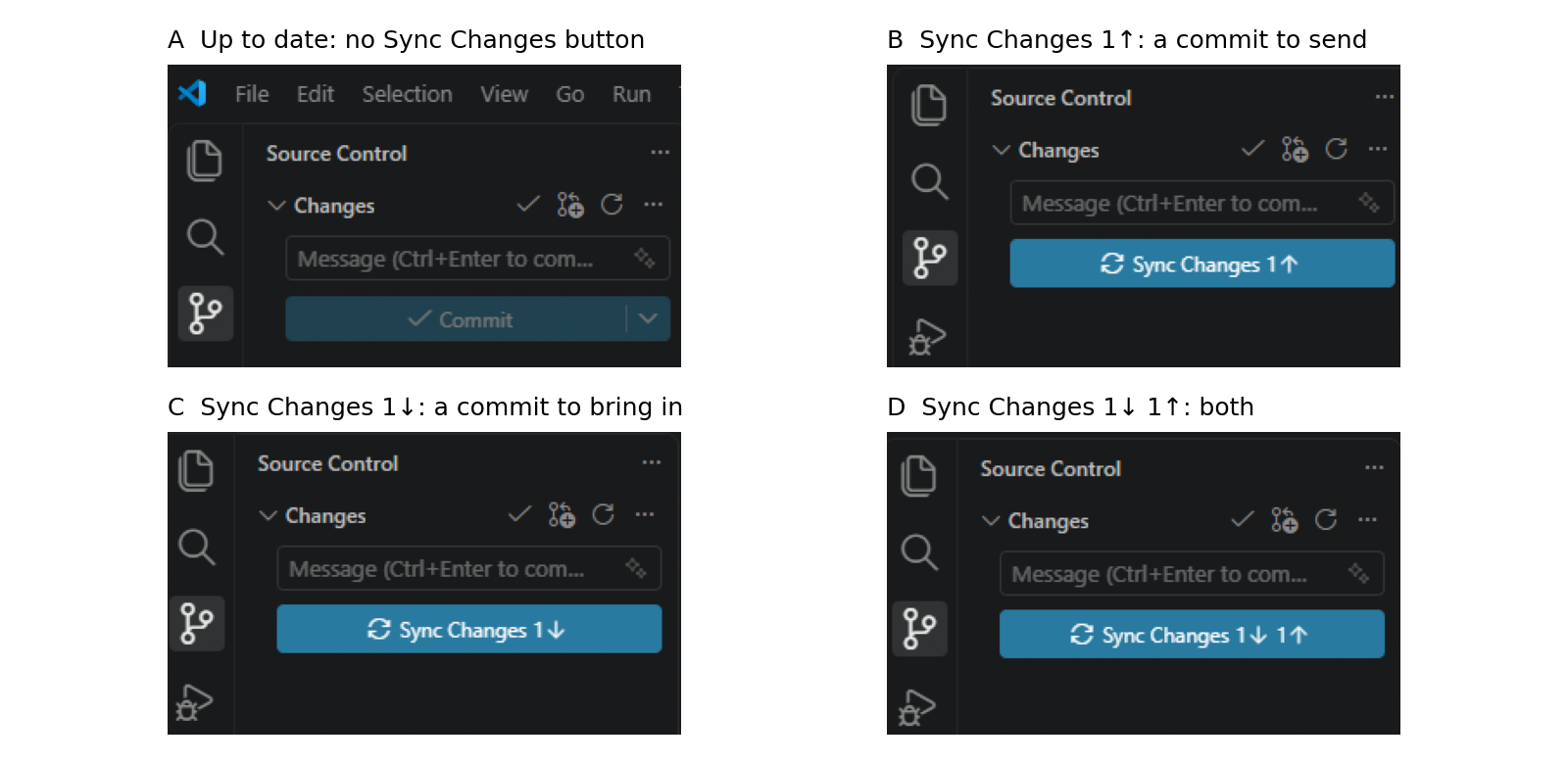
Figure 1. The big button in the Source Control tab. A: the branch and GitHub agree and nothing is waiting to be committed, so the button is a greyed-out Commit. B: one commit of yours is waiting to go to GitHub (up-arrow). C: GitHub has one commit you do not have yet (down-arrow). D: both. The colors change with your VS Code theme, but the number and the arrow do not.
Read the branch name in the bottom-left corner before you click
either button. They send your commits to GitHub, so they must say your
own branch. If the corner shows anything other than
student-yourname, stop and ask your lead.
A down-arrow number as well as an up-arrow number?
Only you push to your own branch, so there is normally no down-arrow
number. If there is one, newer commits were put on your branch on
GitHub, usually by your lead, who merged the project’s newest changes
into it. After you have checked the branch name, click Sync
Changes as usual. VS Code asks for confirmation: the question
says it will pull and push commits from and to
origin/student-yourname. Click OK. It
first downloads the newer commits, then sends yours.
If VS Code then says there are merge conflicts, or
lists files under Merge Changes in the Source Control
tab, nothing has been sent to GitHub and nothing of yours is lost.
Stop, and do not edit anything. Press
Ctrl+Shift+P, type Git: Abort Merge, and press Enter: this puts
everything back as it was before you clicked. Then send your lead a
screenshot.
The big button no longer shows an up-arrow number, and your branch appears on https://github.com/villano-lab/NSDF-Data/branches.
This step is git push (the first time,
git push -u origin student-yourname). Sync
Changes runs git pull first, to bring in anything
newer on GitHub, and then git push.
Step 6. Bring in the newest project changes
The project keeps changing. When Updating your setup (guide 7) tells you to bring in the newest changes (its Step 2), you can do that step here instead of typing the two lines. Do all the other steps of guide 7 as written, because they update your environment.
- Sync first. Look at the big button in the Source Control tab. If it reads Sync Changes with an up-arrow or a down-arrow number (B, C or D in Figure 1), click it (Step 5) so that your branch and GitHub agree before you start. If it is the greyed-out Commit (A), or has no number, go on.
- Press
Ctrl+Shift+P. A box opens at the top of the window. - Type
Git: Fetchand press Enter. This downloads the newest changes without touching your files (git fetch origin). - Press
Ctrl+Shift+Pagain, typeGit: Merge..., and press Enter. - A list of branches opens. Choose origin/develop,
under remote branches. This combines it with your branch
(
git merge --no-edit origin/develop). - Look at the big button again. If it now shows an up-arrow number, click Sync Changes (Step 5) to send the result to GitHub.
VS Code finishes without an error message, and the Source Control tab
shows no conflict. Then look at the big button. If it shows an up-arrow
number, the newest project changes are now on your branch and waiting to
go to GitHub (point 6). If it shows no number, you already had the
newest changes. VS Code says nothing when there is nothing to merge,
whereas the terminal prints Already up to date., so it can
look as if the command did nothing. Nothing went wrong.
If VS Code reports a conflict, or lists files under
Merge Changes in the Source Control tab, stop.
Do not edit anything. (Two versions of a file side by side is
not a sign of a conflict: VS Code shows that comparison whenever you
click a changed file.) To put everything back as it was, press
Ctrl+Shift+P, type Git: Abort Merge, and press Enter. Then send your
lead a screenshot or the message. This is the same rule as the terminal
guides: stop, and send it to your lead.
Step 7. Open a pull request
When a note or a piece of work is ready for review, open the pull request the way guide 4 (Step 3) shows, on github.com. That route has been tested step by step, and it is the one to use.
Optional: from inside VS Code
VS Code can also open pull requests for you, with an extension made by GitHub.
This part was written from the extension’s own documentation and its list of commands, and has not yet been tried all the way through on a student’s computer. If a screen differs, stop, and use guide 4 instead.
- Press
Ctrl+Shift+Xto open Extensions. - Search for
GitHub Pull Requests. Install the one whose publisher is GitHub, with the check mark (verified publisher) next to the name. - A GitHub icon appears in the bar on the left. Click it and choose Sign in. A web page opens in your browser: sign in to GitHub there. Never type your GitHub password into VS Code or into the terminal.
- Your branch will not be listed in the extension’s
view: that view lists pull requests, not branches, so a branch that has
no pull request yet does not appear in it. To start one, click the
Create Pull Request button. It is a very small
icon, the pull-request symbol with a plus sign on it, at the
right end of the title bar of the Pull Requests view
(the view you open with the GitHub icon in the bar on the left). Move
the mouse over it and a label says Create Pull Request. Or
press
Ctrl+Shift+P, typeGitHub Pull Requests: Create Pull Request, and press Enter. The button and the command only appear after you have signed in (point 3) and pushed your branch (Step 5). - A form opens. Check that the base is
develop(it may offermaster: change it) and that the branch being compared isstudent-yourname. Write the title and the description as guide 4 says, then click Create. Your pull request is then listed in the view.
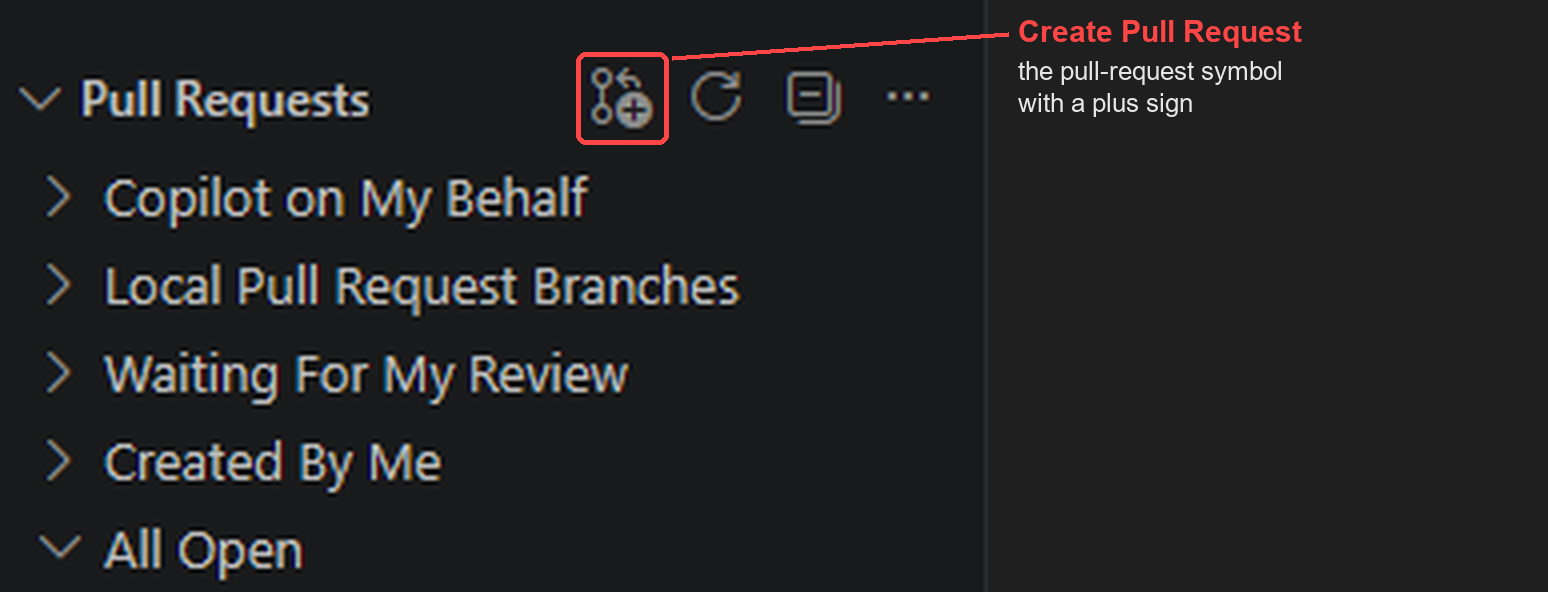
Figure 2. The Pull Requests view of the GitHub extension. The button that starts a pull request is the first icon in the title bar, the pull-request symbol with a plus sign (outlined in red). It is small. The other icons are Refresh, Collapse All and a menu. Your own branch is not in the list below until its pull request exists.
The same steps in the terminal
| In VS Code | In the terminal |
|---|---|
| The branch name in the corner of the window | git branch --show-current |
| The list of changes in Source Control | git status |
| The + button | git add your-file |
| Message box and Commit | git commit -m "..." |
| Publish Branch (first time) | git push -u origin student-yourname |
| Sync Changes | git pull, then git push |
Git: Fetch |
git fetch origin |
Git: Merge... with
origin/develop |
git merge --no-edit origin/develop |
| The Create Pull Request button of the GitHub extension (Step 7) | gh pr create --base develop --title "Add note: your title" --body "One sentence on what the note answers." |
The last row uses the gh command, which guide 1
installed and signed in to GitHub in its Step 8. Run it from the
NSDF-Data folder, on your own branch, after your commits
are pushed (Step 5); it prints the address of your pull request. This
way has not yet been tried on a student’s computer:
guide 4 (Step 3), on github.com, is the route that has been tested step
by step. Whichever way you use, the base must be
develop.
When something looks wrong
| You see | What it means | What to do |
|---|---|---|
| The Source Control tab is empty and mentions Restricted Mode | VS Code has not been told to trust this folder. | Click Restricted Mode in the bottom-left status bar and choose Trust (Step 2). |
The corner shows develop or master |
You are not on your own branch. | Switch to your own branch (Step 3). Stop and ask your lead only if Git warns when you switch. |
| No Source Control icon, or “no repository found” | The folder you opened is not the NSDF-Data folder. |
File, Open Folder, and pick the
NSDF-Data folder itself. |
| A question about staging everything and committing | Nothing is staged yet. | Cancel, then stage your files with + (Step 4). |
| Sync Changes shows a down-arrow number as well as an up-arrow number | There are newer commits on your branch on GitHub: your lead merged the project’s newest changes into it. | Check the branch name, click Sync Changes, and click OK on the question (Step 5). |
| VS Code says there are merge conflicts, or lists files under Merge Changes | Git cannot combine two changes by itself. Nothing has been sent to GitHub. | Stop. Do not edit anything. Press Ctrl+Shift+P, run
Git: Abort Merge, and send your lead a
screenshot. |
| Two versions of a file side by side | A comparison (a “diff”). VS Code shows it whenever you click a changed file. It is not a conflict. | Nothing: close it, or go on. A real conflict is announced as in the row above. |
Git: Merge... finishes and nothing seems to
have happened |
You already had the newest changes. VS Code says nothing when there is nothing to merge. | Look at the big button (Step 6). No number means you were up to date. |
| “Make sure you configure your user.name and user.email”, or a permission error | Git does not know your name, or you are not signed in to GitHub. | Setup guide, Step 8. Never type your GitHub password into VS Code. |
Session Info
Guide version 5, 20 October 2026, Windows edition. Kitty Mickelson
went through the steps on Ubuntu, where they already use Git through VS
Code, on 15 October and found them accurate; version 4 follows their
review. The Git steps were also checked in a browser version of VS Code
on a test copy of the project, on Windows (commit, the branch list, the
merge list, and installing the extension). The names of the commands
(Git: Fetch, Git: Merge...,
Git: Abort Merge) were checked against VS Code 1.141. The
Sync Changes question and the way out of a conflict
were written from VS Code’s documentation and have not been tried on a
real conflict. The install on a computer that does not have VS Code yet,
the sign-in, and the pull-request part have not been tried on a
student’s computer. Please tell the project lead where a step was
unclear.
Where to get help
Anthony Villano, project lead: anthony.villano@ucdenver.edu
When you write, include a screenshot of the VS Code window and the message that worried you.
Key links
- Repository: https://github.com/villano-lab/NSDF-Data
- Student guides: https://villano-lab.github.io/NSDF-Data/
- VS Code: https://code.visualstudio.com/
macOS edition
Git in VS Code
This is guide 9, and it is optional. It does the same Git steps as the terminal guides, with buttons in VS Code instead of typed commands. If you are happy with the terminal, you do not need this guide. If a screen here does not match what you see, trust the terminal version, and tell your lead which step differed.
Before you start
- You finished the setup guide (guide 1) for macOS, including Step 8,
which made your branch
student-yourname. - You have read Git in five minutes (guide 8). It explains the words used here: commit, branch, push, pull request.
- Time: about 15 minutes, plus the install in Step 1 if you do not have VS Code yet.
VS Code uses the Git that guide 1 installed, so nothing else has to be set up.
Step 1. Install VS Code
If you wrote a note in Markdown (guide 3), you already have it: skip to Step 2.
Go to code.visualstudio.com and
click the download button for macOS. Open the downloaded
.zip file in your Downloads folder: it
makes an app called Visual Studio Code. Drag that app into your
Applications folder. Open it from there, or press
Command + Space, type Visual Studio Code,
and press Return. The first time, macOS says the app
was downloaded from the internet: click Open.
VS Code starts and shows a Welcome page.
Step 2. Open the project folder
- Start VS Code.
- Choose File, then Open Folder, and
pick the
NSDF-Datafolder (the one in~/Research). - VS Code may ask whether you trust the authors of the files in this folder. This is your own copy of the project: choose Yes, I trust the authors.
Until you trust the folder, the Source Control tab (Step 4) stays empty and says that Git does not work in Restricted Mode. Nothing is broken: trust the folder and it fills in.
If you closed the question without answering it, click
Restricted Mode in the bottom-left status bar (it is
easy to miss on a large screen), or press Cmd+Shift+P, type
Workspaces: Manage Workspace Trust, and press
Enter. Then choose Trust. VS
Code’s page on workspace trust explains it.
Step 3. Check your branch
Look at the bottom-left corner of the VS Code window. It shows the name of your branch.
The corner shows student-yourname (your own branch).
This is the same check as git branch --show-current in the
terminal guides.
If it shows develop or master, or a branch
that is not yours, switch to yours first: click the name in the corner
and pick student-yourname from the list. Changes you have
not committed yet come with you to your branch.
If VS Code or Git shows a warning when you switch
(for example that your changes would be overwritten), stop and
ask your lead, and do not force it. Do not commit, and do not
press Sync Changes, while the corner shows
develop or master: your own work belongs on
your own branch.
Step 4. Save your work as a commit
- Open Source Control: click the branch-shaped icon
in the bar on the left, or press
Cmd+Shift+G. - Under Changes, every file you changed is listed with a letter: M for changed, U for new. Read the list before you do anything else.
The list contains only your own files (your notebook, your note, its
pictures). If it shows data files (a folder named idx, or
.bin files) or other people’s files, do not stage them: ask
your lead.
Move the mouse over one of your files and click the + (Stage Changes). The file moves to Staged Changes. Do this for each of your files. This is
git add.To stage several files at once: click the first, then Shift-click the last to select everything in between (or Cmd-click to pick single files), and click the + on any selected file: it stages all of them.
Click the box that says Message and write what you changed, in a few words. This is the
-m "..."ofgit commit.Click Commit.
If VS Code says that there are no staged changes and asks whether to stage everything and commit, choose Cancel, and stage your files yourself with the + button. “Commit all” is how data files and other people’s files get in by mistake.
Step 5. Send your commits to GitHub
After a commit, the big button under the message box shows what is left to send.
- The first time on your branch, it reads Publish
Branch. Click it. If VS Code asks which remote, choose
origin. - After that, it reads Sync Changes with a number and an arrow. The up-arrow number is how many of your commits are waiting to go to GitHub. Click it to send them. A down-arrow number is how many commits on GitHub you do not have yet. Figure 1 shows what each case looks like.
- When your branch and GitHub already agree and you have nothing to commit, there is no Sync Changes button: the big button is a greyed-out Commit.
Figure 1. The big button in the Source Control tab. A: the branch and GitHub agree and nothing is waiting to be committed, so the button is a greyed-out Commit. B: one commit of yours is waiting to go to GitHub (up-arrow). C: GitHub has one commit you do not have yet (down-arrow). D: both. The colors change with your VS Code theme, but the number and the arrow do not.
Read the branch name in the bottom-left corner before you click
either button. They send your commits to GitHub, so they must say your
own branch. If the corner shows anything other than
student-yourname, stop and ask your lead.
A down-arrow number as well as an up-arrow number?
Only you push to your own branch, so there is normally no down-arrow
number. If there is one, newer commits were put on your branch on
GitHub, usually by your lead, who merged the project’s newest changes
into it. After you have checked the branch name, click Sync
Changes as usual. VS Code asks for confirmation: the question
says it will pull and push commits from and to
origin/student-yourname. Click OK. It
first downloads the newer commits, then sends yours.
If VS Code then says there are merge conflicts, or
lists files under Merge Changes in the Source Control
tab, nothing has been sent to GitHub and nothing of yours is lost.
Stop, and do not edit anything. Press
Cmd+Shift+P, type Git: Abort Merge, and press Enter: this puts
everything back as it was before you clicked. Then send your lead a
screenshot.
The big button no longer shows an up-arrow number, and your branch appears on https://github.com/villano-lab/NSDF-Data/branches.
This step is git push (the first time,
git push -u origin student-yourname). Sync
Changes runs git pull first, to bring in anything
newer on GitHub, and then git push.
Step 6. Bring in the newest project changes
The project keeps changing. When Updating your setup (guide 7) tells you to bring in the newest changes (its Step 2), you can do that step here instead of typing the two lines. Do all the other steps of guide 7 as written, because they update your environment.
- Sync first. Look at the big button in the Source Control tab. If it reads Sync Changes with an up-arrow or a down-arrow number (B, C or D in Figure 1), click it (Step 5) so that your branch and GitHub agree before you start. If it is the greyed-out Commit (A), or has no number, go on.
- Press
Cmd+Shift+P. A box opens at the top of the window. - Type
Git: Fetchand press Enter. This downloads the newest changes without touching your files (git fetch origin). - Press
Cmd+Shift+Pagain, typeGit: Merge..., and press Enter. - A list of branches opens. Choose origin/develop,
under remote branches. This combines it with your branch
(
git merge --no-edit origin/develop). - Look at the big button again. If it now shows an up-arrow number, click Sync Changes (Step 5) to send the result to GitHub.
VS Code finishes without an error message, and the Source Control tab
shows no conflict. Then look at the big button. If it shows an up-arrow
number, the newest project changes are now on your branch and waiting to
go to GitHub (point 6). If it shows no number, you already had the
newest changes. VS Code says nothing when there is nothing to merge,
whereas the terminal prints Already up to date., so it can
look as if the command did nothing. Nothing went wrong.
If VS Code reports a conflict, or lists files under
Merge Changes in the Source Control tab, stop.
Do not edit anything. (Two versions of a file side by side is
not a sign of a conflict: VS Code shows that comparison whenever you
click a changed file.) To put everything back as it was, press
Cmd+Shift+P, type Git: Abort Merge, and press Enter. Then send your
lead a screenshot or the message. This is the same rule as the terminal
guides: stop, and send it to your lead.
Step 7. Open a pull request
When a note or a piece of work is ready for review, open the pull request the way guide 4 (Step 3) shows, on github.com. That route has been tested step by step, and it is the one to use.
Optional: from inside VS Code
VS Code can also open pull requests for you, with an extension made by GitHub.
This part was written from the extension’s own documentation and its list of commands, and has not yet been tried all the way through on a student’s computer. If a screen differs, stop, and use guide 4 instead.
- Press
Cmd+Shift+Xto open Extensions. - Search for
GitHub Pull Requests. Install the one whose publisher is GitHub, with the check mark (verified publisher) next to the name. - A GitHub icon appears in the bar on the left. Click it and choose Sign in. A web page opens in your browser: sign in to GitHub there. Never type your GitHub password into VS Code or into the terminal.
- Your branch will not be listed in the extension’s
view: that view lists pull requests, not branches, so a branch that has
no pull request yet does not appear in it. To start one, click the
Create Pull Request button. It is a very small
icon, the pull-request symbol with a plus sign on it, at the
right end of the title bar of the Pull Requests view
(the view you open with the GitHub icon in the bar on the left). Move
the mouse over it and a label says Create Pull Request. Or
press
Cmd+Shift+P, typeGitHub Pull Requests: Create Pull Request, and press Enter. The button and the command only appear after you have signed in (point 3) and pushed your branch (Step 5). - A form opens. Check that the base is
develop(it may offermaster: change it) and that the branch being compared isstudent-yourname. Write the title and the description as guide 4 says, then click Create. Your pull request is then listed in the view.
Figure 2. The Pull Requests view of the GitHub extension. The button that starts a pull request is the first icon in the title bar, the pull-request symbol with a plus sign (outlined in red). It is small. The other icons are Refresh, Collapse All and a menu. Your own branch is not in the list below until its pull request exists.
The same steps in the terminal
| In VS Code | In the terminal |
|---|---|
| The branch name in the corner of the window | git branch --show-current |
| The list of changes in Source Control | git status |
| The + button | git add your-file |
| Message box and Commit | git commit -m "..." |
| Publish Branch (first time) | git push -u origin student-yourname |
| Sync Changes | git pull, then git push |
Git: Fetch |
git fetch origin |
Git: Merge... with
origin/develop |
git merge --no-edit origin/develop |
| The Create Pull Request button of the GitHub extension (Step 7) | gh pr create --base develop --title "Add note: your title" --body "One sentence on what the note answers." |
The last row uses the gh command, which guide 1
installed and signed in to GitHub in its Step 8. Run it from the
NSDF-Data folder, on your own branch, after your commits
are pushed (Step 5); it prints the address of your pull request. This
way has not yet been tried on a student’s computer:
guide 4 (Step 3), on github.com, is the route that has been tested step
by step. Whichever way you use, the base must be
develop.
When something looks wrong
| You see | What it means | What to do |
|---|---|---|
| The Source Control tab is empty and mentions Restricted Mode | VS Code has not been told to trust this folder. | Click Restricted Mode in the bottom-left status bar and choose Trust (Step 2). |
The corner shows develop or master |
You are not on your own branch. | Switch to your own branch (Step 3). Stop and ask your lead only if Git warns when you switch. |
| No Source Control icon, or “no repository found” | The folder you opened is not the NSDF-Data folder. |
File, Open Folder, and pick the
NSDF-Data folder itself. |
| A question about staging everything and committing | Nothing is staged yet. | Cancel, then stage your files with + (Step 4). |
| Sync Changes shows a down-arrow number as well as an up-arrow number | There are newer commits on your branch on GitHub: your lead merged the project’s newest changes into it. | Check the branch name, click Sync Changes, and click OK on the question (Step 5). |
| VS Code says there are merge conflicts, or lists files under Merge Changes | Git cannot combine two changes by itself. Nothing has been sent to GitHub. | Stop. Do not edit anything. Press Cmd+Shift+P, run
Git: Abort Merge, and send your lead a
screenshot. |
| Two versions of a file side by side | A comparison (a “diff”). VS Code shows it whenever you click a changed file. It is not a conflict. | Nothing: close it, or go on. A real conflict is announced as in the row above. |
Git: Merge... finishes and nothing seems to
have happened |
You already had the newest changes. VS Code says nothing when there is nothing to merge. | Look at the big button (Step 6). No number means you were up to date. |
| “Make sure you configure your user.name and user.email”, or a permission error | Git does not know your name, or you are not signed in to GitHub. | Setup guide, Step 8. Never type your GitHub password into VS Code. |
Session Info
Guide version 5, 20 October 2026, macOS edition. Kitty Mickelson went
through the steps on Ubuntu, where they already use Git through VS Code,
on 15 October and found them accurate; version 4 follows their review.
The Git steps were also checked in a browser version of VS Code on a
test copy of the project, on Windows (commit, the branch list, the merge
list, and installing the extension). The names of the commands
(Git: Fetch, Git: Merge...,
Git: Abort Merge) were checked against VS Code 1.141. The
Sync Changes question and the way out of a conflict
were written from VS Code’s documentation and have not been tried on a
real conflict. The install on a computer that does not have VS Code yet,
the sign-in, and the pull-request part have not been tried on a
student’s computer. Please tell the project lead where a step was
unclear.
Where to get help
Anthony Villano, project lead: anthony.villano@ucdenver.edu
When you write, include a screenshot of the VS Code window and the message that worried you.
Key links
- Repository: https://github.com/villano-lab/NSDF-Data
- Student guides: https://villano-lab.github.io/NSDF-Data/
- VS Code: https://code.visualstudio.com/
Linux edition
Git in VS Code
This is guide 9, and it is optional. It does the same Git steps as the terminal guides, with buttons in VS Code instead of typed commands. If you are happy with the terminal, you do not need this guide. If a screen here does not match what you see, trust the terminal version, and tell your lead which step differed.
Before you start
- You finished the setup guide (guide 1) for Linux, including Step 8,
which made your branch
student-yourname. - You have read Git in five minutes (guide 8). It explains the words used here: commit, branch, push, pull request.
- Time: about 15 minutes, plus the install in Step 1 if you do not have VS Code yet.
VS Code uses the Git that guide 1 installed, so nothing else has to be set up.
Step 1. Install VS Code
If you wrote a note in Markdown (guide 3), you already have it: skip to Step 2.
This guide uses Ubuntu or Debian commands. If you use another distribution, follow Microsoft’s instructions for Linux instead. On Ubuntu the simplest way needs no download. In a terminal, run:
sudo snap install --classic codeIt asks for your password. Nothing appears while you type it; that is
normal. (The --classic is needed: without it the command
fails.) When it finishes, start Visual Studio Code from
your applications menu.
If you cannot use snap, use the .deb file
instead. Go to code.visualstudio.com and
download it. In a terminal, go to the folder with the file (usually
cd ~/Downloads) and run:
sudo apt install ./code_*.debIf you have downloaded more than one such file, use the exact file
name instead of the *.
VS Code starts and shows a Welcome page.
Step 2. Open the project folder
- Start VS Code.
- Choose File, then Open Folder, and
pick the
NSDF-Datafolder (the one in~/Research). - VS Code may ask whether you trust the authors of the files in this folder. This is your own copy of the project: choose Yes, I trust the authors.
Until you trust the folder, the Source Control tab (Step 4) stays empty and says that Git does not work in Restricted Mode. Nothing is broken: trust the folder and it fills in.
If you closed the question without answering it, click
Restricted Mode in the bottom-left status bar (it is
easy to miss on a large screen), or press Ctrl+Shift+P,
type Workspaces: Manage Workspace Trust, and
press Enter. Then choose Trust. VS
Code’s page on workspace trust explains it.
Step 3. Check your branch
Look at the bottom-left corner of the VS Code window. It shows the name of your branch.
The corner shows student-yourname (your own branch).
This is the same check as git branch --show-current in the
terminal guides.
If it shows develop or master, or a branch
that is not yours, switch to yours first: click the name in the corner
and pick student-yourname from the list. Changes you have
not committed yet come with you to your branch.
If VS Code or Git shows a warning when you switch
(for example that your changes would be overwritten), stop and
ask your lead, and do not force it. Do not commit, and do not
press Sync Changes, while the corner shows
develop or master: your own work belongs on
your own branch.
Step 4. Save your work as a commit
- Open Source Control: click the branch-shaped icon
in the bar on the left, or press
Ctrl+Shift+G. - Under Changes, every file you changed is listed with a letter: M for changed, U for new. Read the list before you do anything else.
The list contains only your own files (your notebook, your note, its
pictures). If it shows data files (a folder named idx, or
.bin files) or other people’s files, do not stage them: ask
your lead.
Move the mouse over one of your files and click the + (Stage Changes). The file moves to Staged Changes. Do this for each of your files. This is
git add.To stage several files at once: click the first, then Shift-click the last to select everything in between (or Ctrl-click to pick single files), and click the + on any selected file: it stages all of them.
Click the box that says Message and write what you changed, in a few words. This is the
-m "..."ofgit commit.Click Commit.
If VS Code says that there are no staged changes and asks whether to stage everything and commit, choose Cancel, and stage your files yourself with the + button. “Commit all” is how data files and other people’s files get in by mistake.
Step 5. Send your commits to GitHub
After a commit, the big button under the message box shows what is left to send.
- The first time on your branch, it reads Publish
Branch. Click it. If VS Code asks which remote, choose
origin. - After that, it reads Sync Changes with a number and an arrow. The up-arrow number is how many of your commits are waiting to go to GitHub. Click it to send them. A down-arrow number is how many commits on GitHub you do not have yet. Figure 1 shows what each case looks like.
- When your branch and GitHub already agree and you have nothing to commit, there is no Sync Changes button: the big button is a greyed-out Commit.
Figure 1. The big button in the Source Control tab. A: the branch and GitHub agree and nothing is waiting to be committed, so the button is a greyed-out Commit. B: one commit of yours is waiting to go to GitHub (up-arrow). C: GitHub has one commit you do not have yet (down-arrow). D: both. The colors change with your VS Code theme, but the number and the arrow do not.
Read the branch name in the bottom-left corner before you click
either button. They send your commits to GitHub, so they must say your
own branch. If the corner shows anything other than
student-yourname, stop and ask your lead.
A down-arrow number as well as an up-arrow number?
Only you push to your own branch, so there is normally no down-arrow
number. If there is one, newer commits were put on your branch on
GitHub, usually by your lead, who merged the project’s newest changes
into it. After you have checked the branch name, click Sync
Changes as usual. VS Code asks for confirmation: the question
says it will pull and push commits from and to
origin/student-yourname. Click OK. It
first downloads the newer commits, then sends yours.
If VS Code then says there are merge conflicts, or
lists files under Merge Changes in the Source Control
tab, nothing has been sent to GitHub and nothing of yours is lost.
Stop, and do not edit anything. Press
Ctrl+Shift+P, type Git: Abort Merge, and press Enter: this puts
everything back as it was before you clicked. Then send your lead a
screenshot.
The big button no longer shows an up-arrow number, and your branch appears on https://github.com/villano-lab/NSDF-Data/branches.
This step is git push (the first time,
git push -u origin student-yourname). Sync
Changes runs git pull first, to bring in anything
newer on GitHub, and then git push.
Step 6. Bring in the newest project changes
The project keeps changing. When Updating your setup (guide 7) tells you to bring in the newest changes (its Step 2), you can do that step here instead of typing the two lines. Do all the other steps of guide 7 as written, because they update your environment.
- Sync first. Look at the big button in the Source Control tab. If it reads Sync Changes with an up-arrow or a down-arrow number (B, C or D in Figure 1), click it (Step 5) so that your branch and GitHub agree before you start. If it is the greyed-out Commit (A), or has no number, go on.
- Press
Ctrl+Shift+P. A box opens at the top of the window. - Type
Git: Fetchand press Enter. This downloads the newest changes without touching your files (git fetch origin). - Press
Ctrl+Shift+Pagain, typeGit: Merge..., and press Enter. - A list of branches opens. Choose origin/develop,
under remote branches. This combines it with your branch
(
git merge --no-edit origin/develop). - Look at the big button again. If it now shows an up-arrow number, click Sync Changes (Step 5) to send the result to GitHub.
VS Code finishes without an error message, and the Source Control tab
shows no conflict. Then look at the big button. If it shows an up-arrow
number, the newest project changes are now on your branch and waiting to
go to GitHub (point 6). If it shows no number, you already had the
newest changes. VS Code says nothing when there is nothing to merge,
whereas the terminal prints Already up to date., so it can
look as if the command did nothing. Nothing went wrong.
If VS Code reports a conflict, or lists files under
Merge Changes in the Source Control tab, stop.
Do not edit anything. (Two versions of a file side by side is
not a sign of a conflict: VS Code shows that comparison whenever you
click a changed file.) To put everything back as it was, press
Ctrl+Shift+P, type Git: Abort Merge, and press Enter. Then send your
lead a screenshot or the message. This is the same rule as the terminal
guides: stop, and send it to your lead.
Step 7. Open a pull request
When a note or a piece of work is ready for review, open the pull request the way guide 4 (Step 3) shows, on github.com. That route has been tested step by step, and it is the one to use.
Optional: from inside VS Code
VS Code can also open pull requests for you, with an extension made by GitHub.
This part was written from the extension’s own documentation and its list of commands, and has not yet been tried all the way through on a student’s computer. If a screen differs, stop, and use guide 4 instead.
- Press
Ctrl+Shift+Xto open Extensions. - Search for
GitHub Pull Requests. Install the one whose publisher is GitHub, with the check mark (verified publisher) next to the name. - A GitHub icon appears in the bar on the left. Click it and choose Sign in. A web page opens in your browser: sign in to GitHub there. Never type your GitHub password into VS Code or into the terminal.
- Your branch will not be listed in the extension’s
view: that view lists pull requests, not branches, so a branch that has
no pull request yet does not appear in it. To start one, click the
Create Pull Request button. It is a very small
icon, the pull-request symbol with a plus sign on it, at the
right end of the title bar of the Pull Requests view
(the view you open with the GitHub icon in the bar on the left). Move
the mouse over it and a label says Create Pull Request. Or
press
Ctrl+Shift+P, typeGitHub Pull Requests: Create Pull Request, and press Enter. The button and the command only appear after you have signed in (point 3) and pushed your branch (Step 5). - A form opens. Check that the base is
develop(it may offermaster: change it) and that the branch being compared isstudent-yourname. Write the title and the description as guide 4 says, then click Create. Your pull request is then listed in the view.
Figure 2. The Pull Requests view of the GitHub extension. The button that starts a pull request is the first icon in the title bar, the pull-request symbol with a plus sign (outlined in red). It is small. The other icons are Refresh, Collapse All and a menu. Your own branch is not in the list below until its pull request exists.
The same steps in the terminal
| In VS Code | In the terminal |
|---|---|
| The branch name in the corner of the window | git branch --show-current |
| The list of changes in Source Control | git status |
| The + button | git add your-file |
| Message box and Commit | git commit -m "..." |
| Publish Branch (first time) | git push -u origin student-yourname |
| Sync Changes | git pull, then git push |
Git: Fetch |
git fetch origin |
Git: Merge... with
origin/develop |
git merge --no-edit origin/develop |
| The Create Pull Request button of the GitHub extension (Step 7) | gh pr create --base develop --title "Add note: your title" --body "One sentence on what the note answers." |
The last row uses the gh command, which guide 1
installed and signed in to GitHub in its Step 8. Run it from the
NSDF-Data folder, on your own branch, after your commits
are pushed (Step 5); it prints the address of your pull request. This
way has not yet been tried on a student’s computer:
guide 4 (Step 3), on github.com, is the route that has been tested step
by step. Whichever way you use, the base must be
develop.
When something looks wrong
| You see | What it means | What to do |
|---|---|---|
| The Source Control tab is empty and mentions Restricted Mode | VS Code has not been told to trust this folder. | Click Restricted Mode in the bottom-left status bar and choose Trust (Step 2). |
The corner shows develop or master |
You are not on your own branch. | Switch to your own branch (Step 3). Stop and ask your lead only if Git warns when you switch. |
| No Source Control icon, or “no repository found” | The folder you opened is not the NSDF-Data folder. |
File, Open Folder, and pick the
NSDF-Data folder itself. |
| A question about staging everything and committing | Nothing is staged yet. | Cancel, then stage your files with + (Step 4). |
| Sync Changes shows a down-arrow number as well as an up-arrow number | There are newer commits on your branch on GitHub: your lead merged the project’s newest changes into it. | Check the branch name, click Sync Changes, and click OK on the question (Step 5). |
| VS Code says there are merge conflicts, or lists files under Merge Changes | Git cannot combine two changes by itself. Nothing has been sent to GitHub. | Stop. Do not edit anything. Press Ctrl+Shift+P, run
Git: Abort Merge, and send your lead a
screenshot. |
| Two versions of a file side by side | A comparison (a “diff”). VS Code shows it whenever you click a changed file. It is not a conflict. | Nothing: close it, or go on. A real conflict is announced as in the row above. |
Git: Merge... finishes and nothing seems to
have happened |
You already had the newest changes. VS Code says nothing when there is nothing to merge. | Look at the big button (Step 6). No number means you were up to date. |
| “Make sure you configure your user.name and user.email”, or a permission error | Git does not know your name, or you are not signed in to GitHub. | Setup guide, Step 8. Never type your GitHub password into VS Code. |
Session Info
Guide version 5, 20 October 2026, Linux edition. Kitty Mickelson went
through the steps on Ubuntu, where they already use Git through VS Code,
on 15 October and found them accurate; version 4 follows their review.
The Git steps were also checked in a browser version of VS Code on a
test copy of the project, on Windows (commit, the branch list, the merge
list, and installing the extension). The names of the commands
(Git: Fetch, Git: Merge...,
Git: Abort Merge) were checked against VS Code 1.141. The
Sync Changes question and the way out of a conflict
were written from VS Code’s documentation and have not been tried on a
real conflict. The install on a computer that does not have VS Code yet,
the sign-in, and the pull-request part have not been tried on a
student’s computer. Please tell the project lead where a step was
unclear.
Where to get help
Anthony Villano, project lead: anthony.villano@ucdenver.edu
When you write, include a screenshot of the VS Code window and the message that worried you.
Key links
- Repository: https://github.com/villano-lab/NSDF-Data
- Student guides: https://villano-lab.github.io/NSDF-Data/
- VS Code: https://code.visualstudio.com/